Use the Share page to promote your designer
Copy your designer link, get a QR code and ready-made posts, and see how often customers share their designs.
The Share page gives you things to post and print. Everything points to your own designer. Nothing is posted for you.
Steps
- Select Share in the top menu.
- Under Your designer link, choose Deck designer or Fence designer.
- Press Copy link, then paste it into an email, a text or your website.
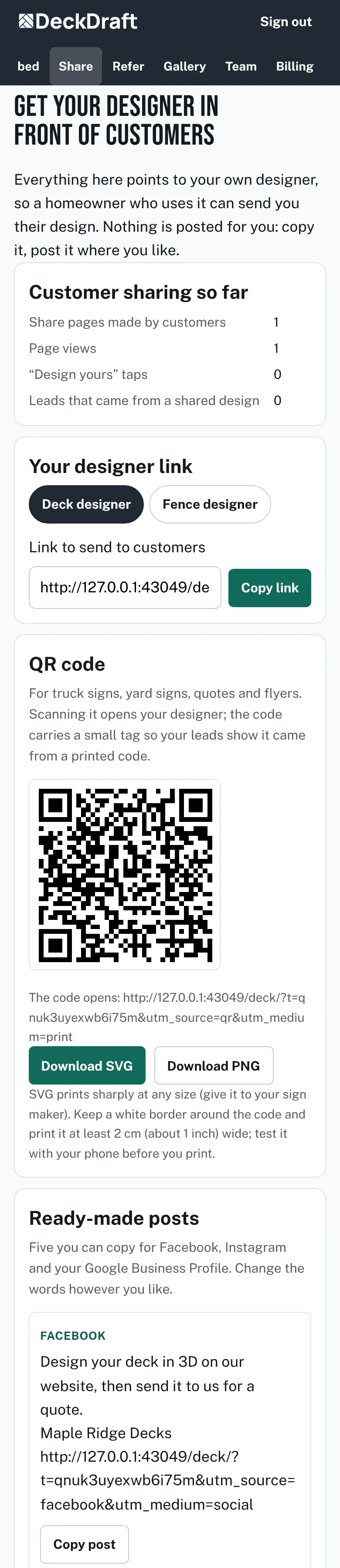
The Share page with customer sharing counts, a designer link with a Copy link button, a QR code with download buttons, and ready-made posts. - Under QR code, press Download SVG for a sign maker or Download PNG for everyday use. Test the code with your phone.
- Under Ready-made posts, press Copy post on one you like. Change the words if you want.
- Under Share pictures, press Download PNG below the size you need.
- To add a button to your Facebook Page, follow the steps at the bottom of the page.

Good to know
- Each link and post has a small tag, so a lead can show where it came from, such as a printed code.
- Customer sharing so far counts the share pages customers made, the page views, the Design yours taps and the leads from a shared design.
- If customer sharing is switched off, the page says so and points to Settings. You turn it on there, under Customer sharing.
- The pictures are made in your browser from your logo and colors.
- See what customers can share: Share links from a homeowner.
Checked against the product on 2026-11-19.