Invite and remove teammates
Send an invitation from the Team page, see who has joined, and remove someone when they leave. Only the account owner can do this.
Everyone on your team can see your leads and settings. Only the account owner can add or remove people.
Steps
- Confirm your own email address first. The Team page refuses invitations until you do.
- Select Team in the top menu.
- Under Invite someone, type their email address.
- Press Send the invitation. They get an email that says you invited them.
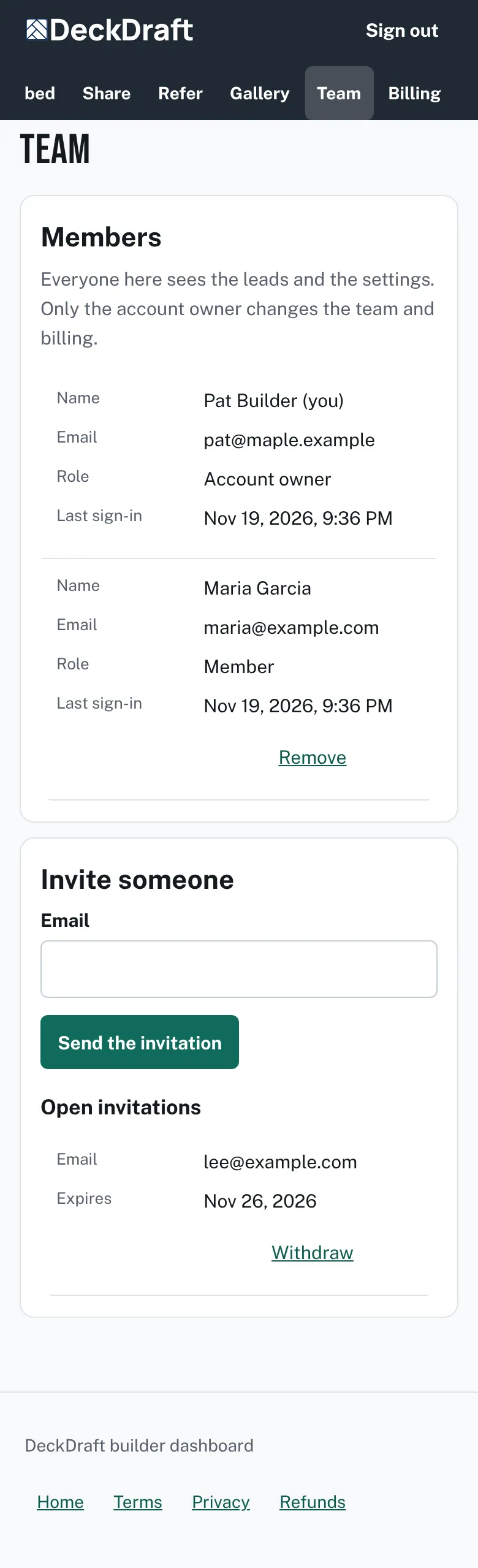
The Team page with a Members table showing the owner and one member, an Invite someone form, and a table of open invitations with a Withdraw button. - The person opens the link and lands on Join the team. They type their name and a password of at least 10 characters, then press Join.
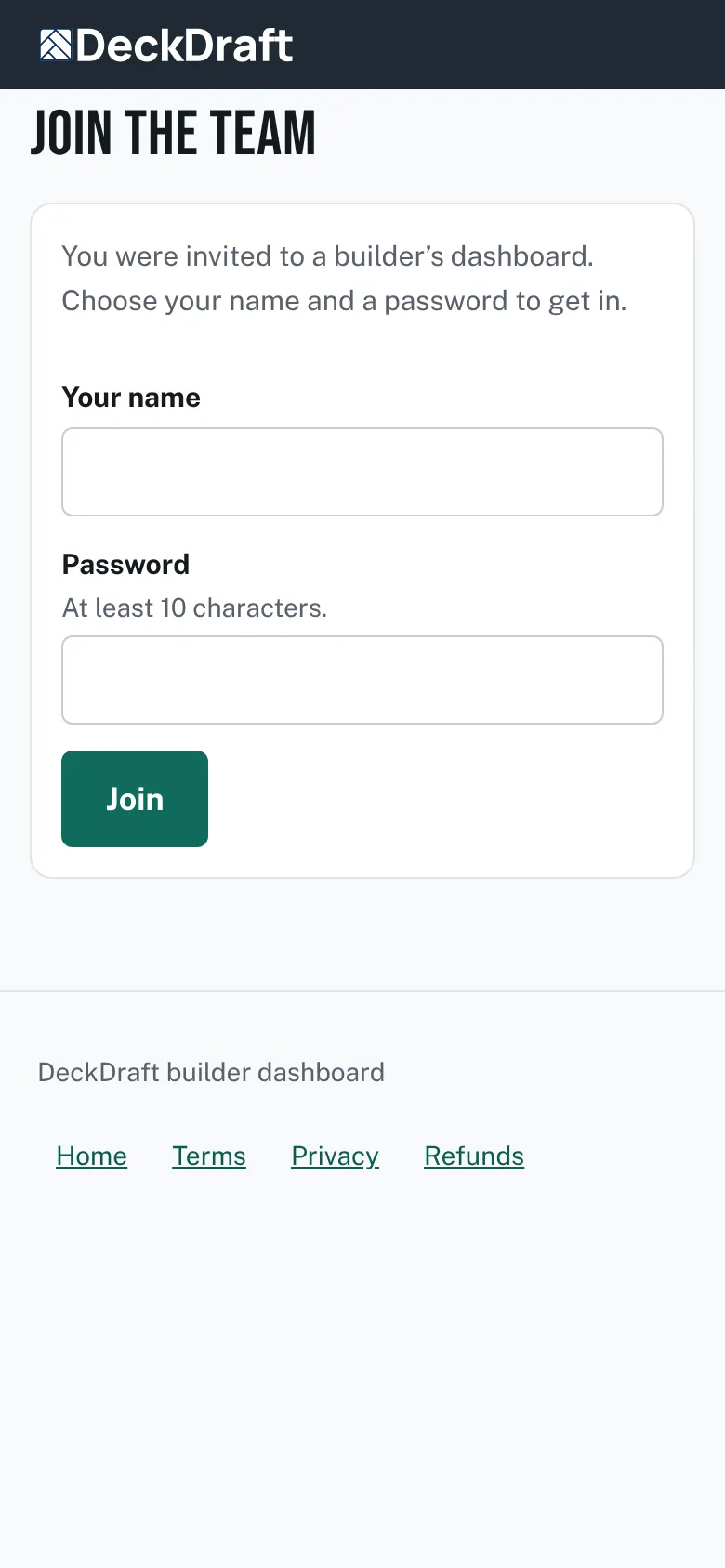
The Join the team page with a name box, a password box and a Join button. - They go straight to Leads. They now show in Members with the role Member.


Remove someone
- Open Team.
- Press Remove at the end of their row.
- Confirm "Remove this person from the team?"
Good to know
- Invitations you have not used yet are listed under Open invitations with an expiry date. Press Withdraw to cancel one.
- The owner row has no Remove button, and you cannot remove yourself.
- A person with an unconfirmed email shows an unconfirmed tag.
- If your plan has a limit on people, a note above the list says how many seats are used. You, members and open invitations all count.
- See what members can and cannot do: Owner and member access.
Checked against the product on 2026-11-19.