Update a card, check status and cancel
Use Manage billing to open Stripe's secure page, change your card or cancel, then read your status on the Billing page.
Once you are paying, Billing has one button: Manage billing. It opens Stripe's secure page, where you change your card or cancel. DeckDraft has no card or cancel form of its own.
Check your status
- Select Billing.
- Read Status. It says Active, renews with a date.
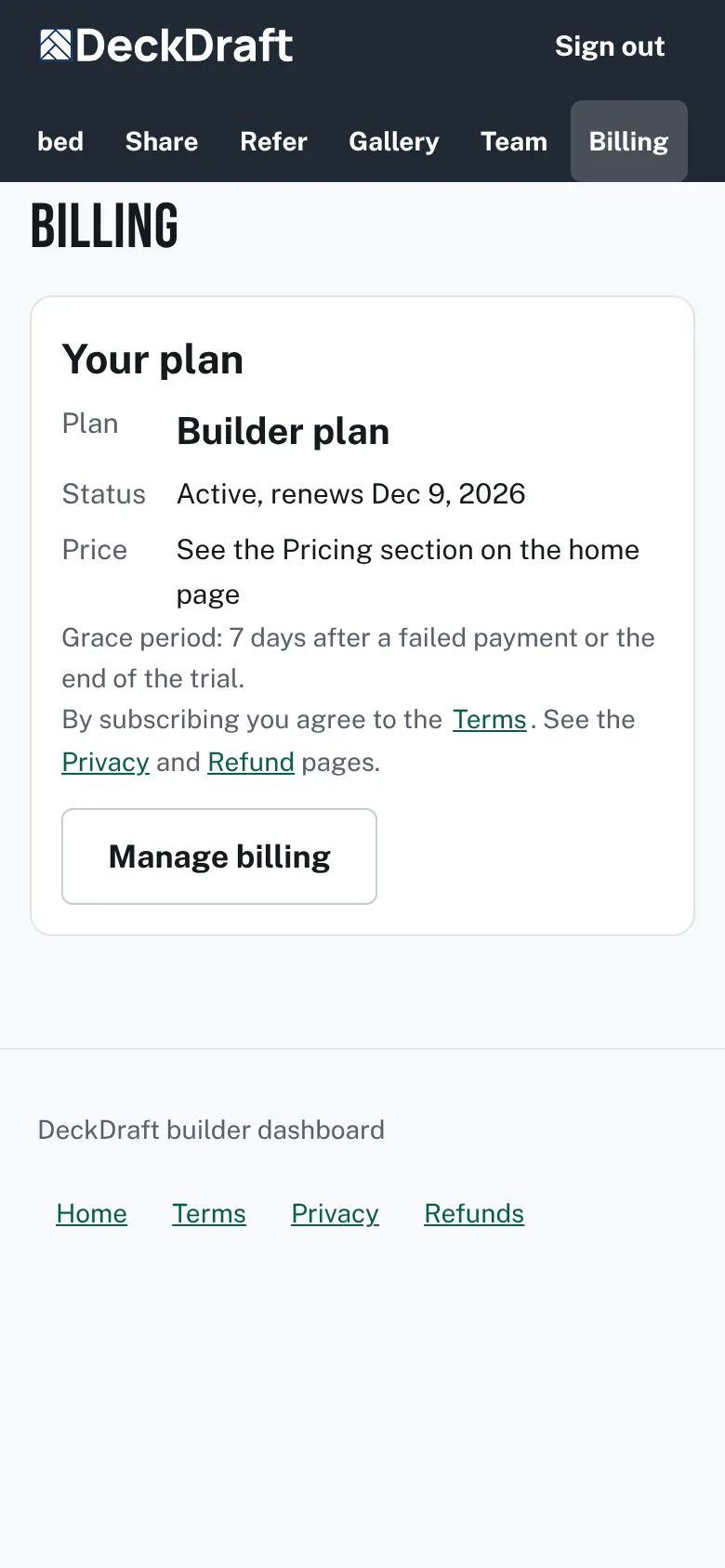
The Billing page for a paying account, with the status Active and a renewal date, and a Manage billing button.

Update a card
- Press Manage billing.
- On Stripe's secure page, choose the option to update your payment method and save it.
- Use the link on Stripe's page to return to Billing.
Cancel
- Press Manage billing.
- On Stripe's secure page, choose the option to cancel your subscription and confirm.
- Return to Billing. Status now ends with "(ends then: cancellation requested)".
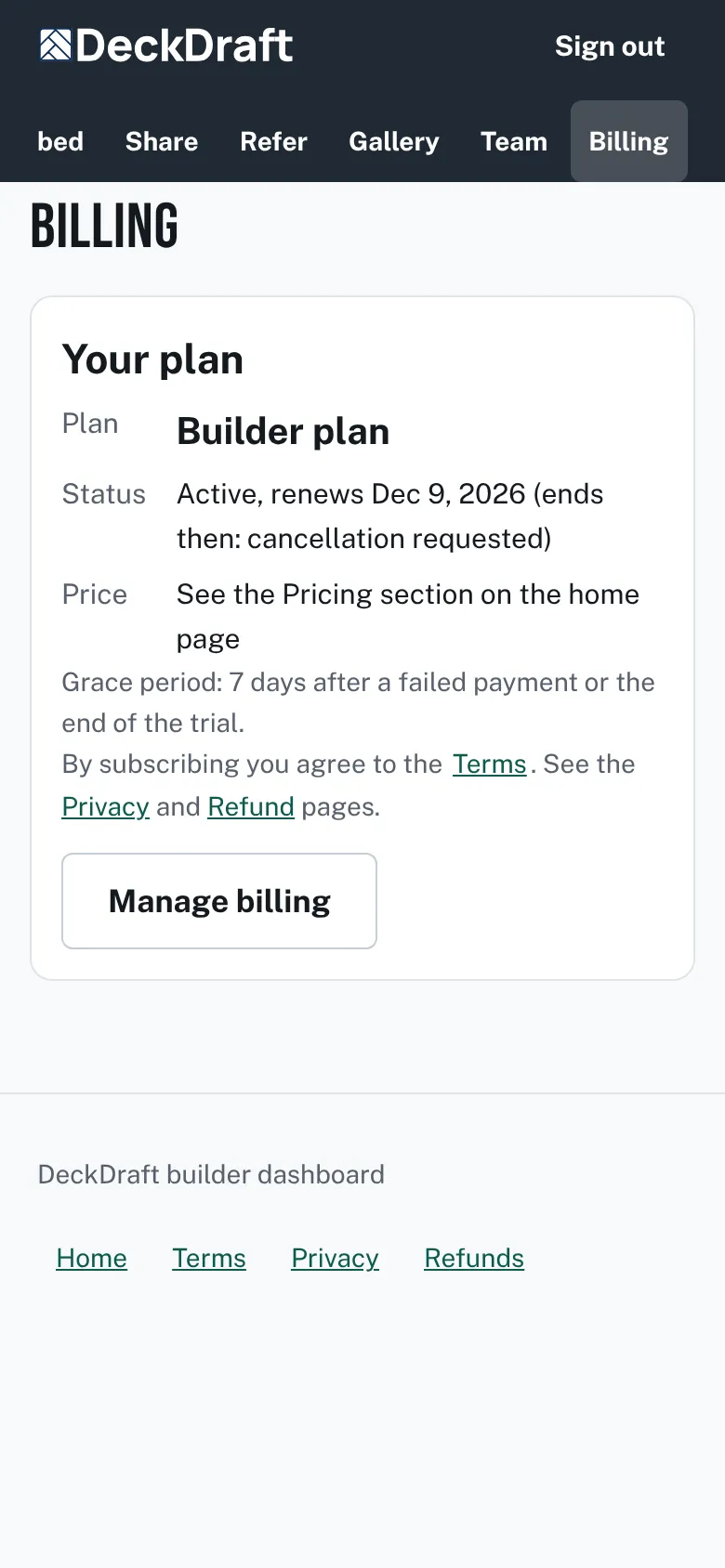
The Billing page with the status Active, a renewal date and the words ends then, cancellation requested.

Good to know
- A cancellation takes effect at the date shown. Until then the designers keep working.
- Only the account owner sees Manage billing.
- If a payment fails, Billing tells you to update your card: If your plan ends or a payment fails.
- The cancel and card pages belong to Stripe, so their words can differ from the steps here.
- For refunds, read the Refunds page.
- To start again after canceling, see Start your plan.
Checked against the product on 2026-11-19.