Start your plan on the Billing page
Open Billing, check your plan and status, and press Subscribe to go to Stripe's secure page. Only the account owner can subscribe.
The Billing page is where you start your plan. It shows what you have now. Payment itself happens on Stripe's secure page, not on DeckDraft.
For what the plan costs and what it includes, see the Pricing section on the home page. The Terms and Refunds pages cover the rest.
Steps
- Sign in as the account owner and select Billing in the top menu.
- Read Your plan. Plan is the plan name. Status says, for example, "Free trial until" and a date. Price shows the price line your site has set.
- Press Subscribe.
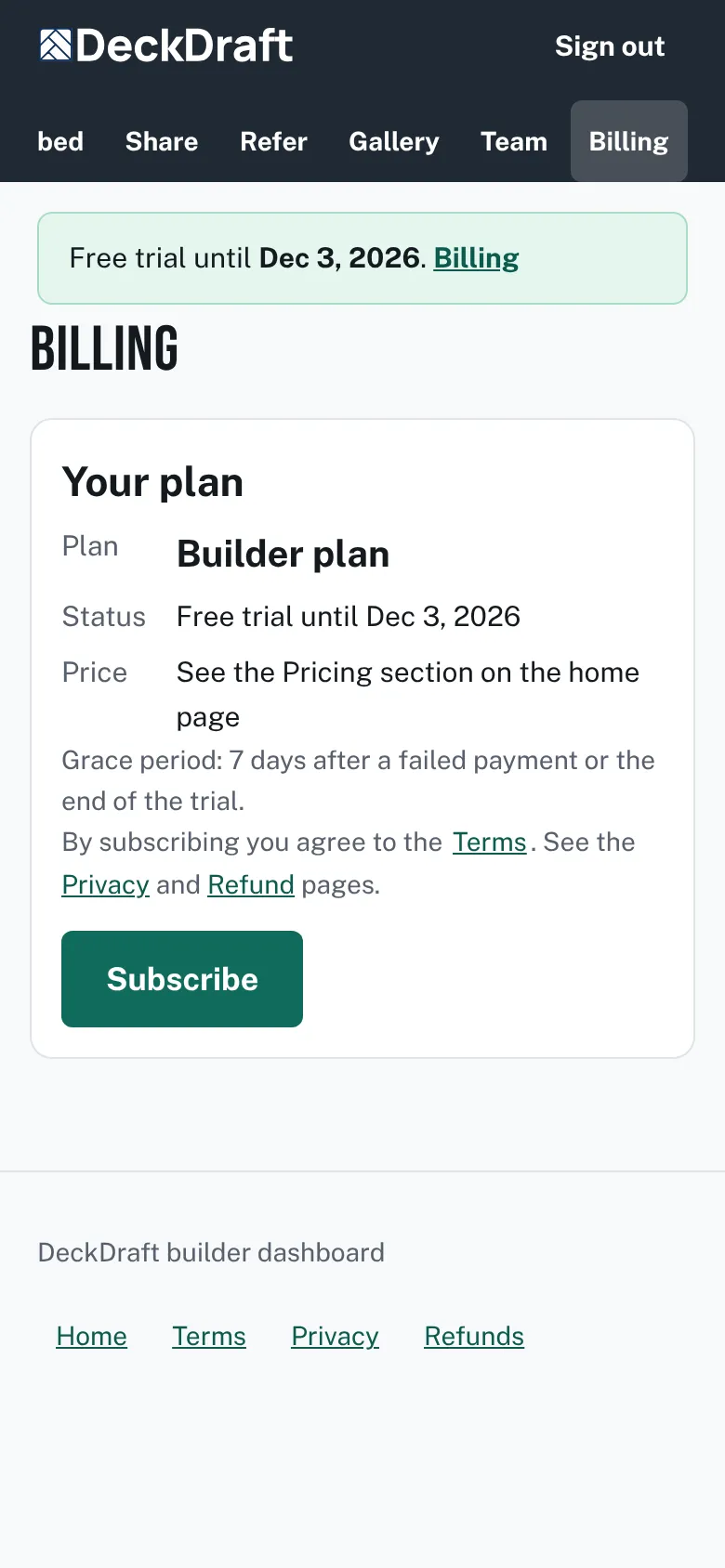
The Billing page during a free trial, showing the plan name, the status line with the trial end date, a price line, and a Subscribe button. - You go to Stripe's secure page. Enter your card there and confirm.
- Stripe sends you back to Billing. A note says "Thanks, your subscription is set up. It can take a minute to show here."
- Wait a moment and reload. Status changes to Active with a renewal date, and Manage billing appears.

Good to know
- Members see the plan but not the button. They see "Only the account owner can change billing."
- During a free trial, a banner at the top shows the end date and links to Billing.
- If billing is not switched on for your site, the page says there is nothing to pay and you keep full access.
- Next, change a card or cancel: Update a card, check status and cancel.
Checked against the product on 2026-11-19.