Your name, phone, email and logo
Set the company name, phone, website, contact email and logo that homeowners see in your designers.
The Your branding card in Settings holds what homeowners see in the designers: the header, the "call us" lines and the watermark on every plan and picture.
Steps
- Open Settings. Your branding is the first card.
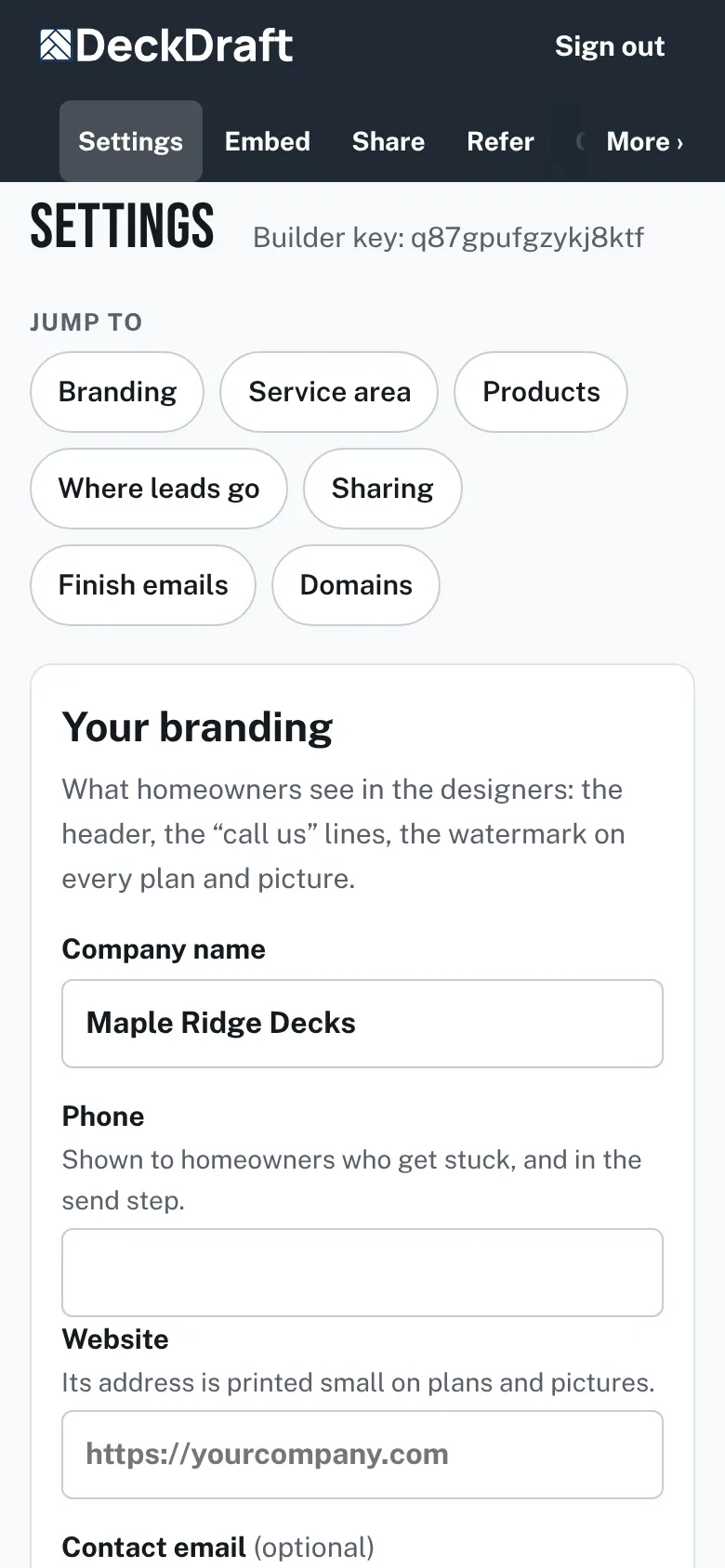
The Your branding card in Settings with boxes for company name, phone, website, contact email and time zone. - Check Company name. It came from sign-up.
- Type your Phone. It is shown to homeowners who get stuck, and in the send step.
- Type your Website. Its address is printed small on plans and pictures.
- Optional: type a Contact email. It is for your records. Leads go to the addresses further down.
- Check Your time zone. Dates on your estimates and in homeowners' emails follow it.
- Press Save settings.
- Press Upload a logo and choose a PNG, JPEG, WebP or plain SVG file.
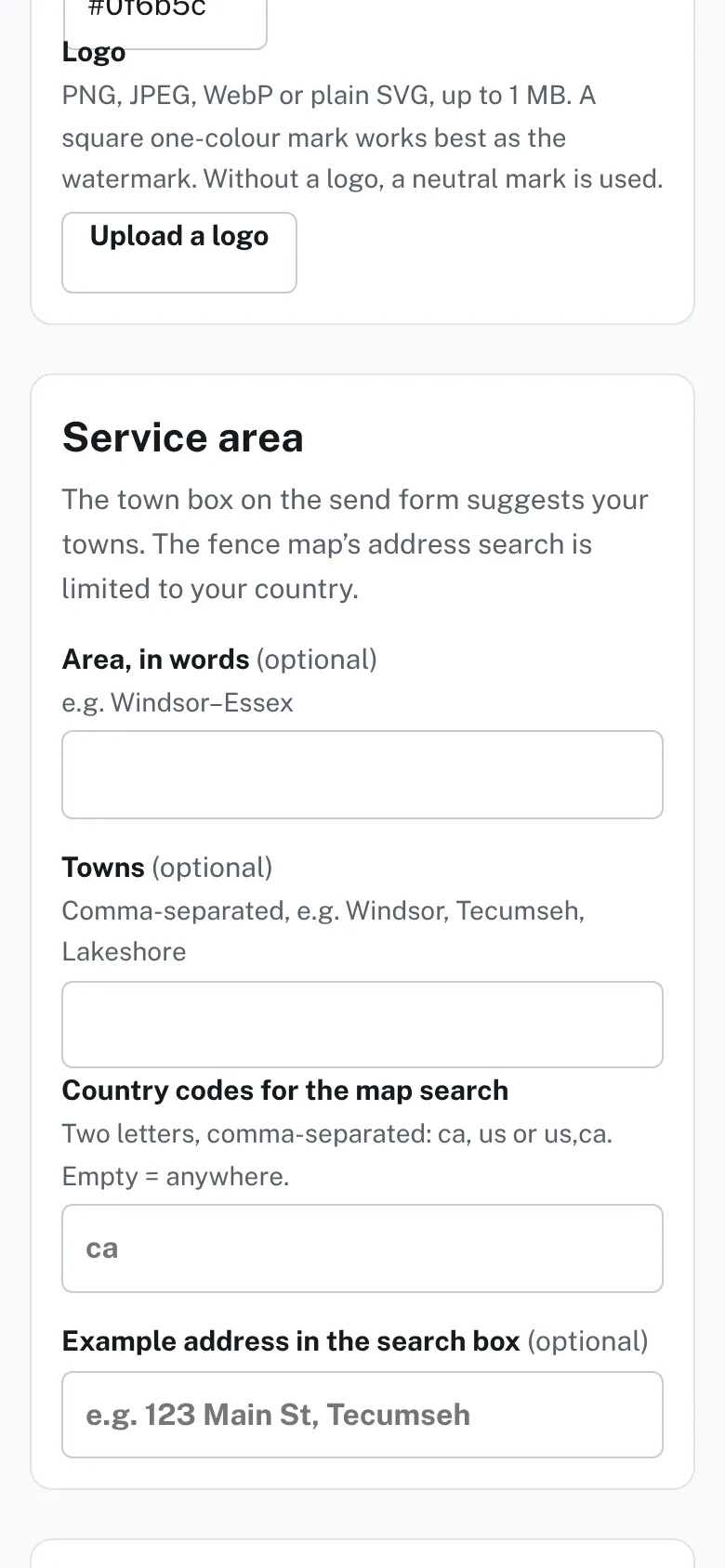
The Logo part of the branding card with the Upload a logo button and a note on the file types that work. - A "Logo saved" message appears, and a small preview shows next to the buttons.


Good to know
- Your changes are not saved until you press Save settings. A bar at the bottom counts your unsaved changes and has its own Save button.
- The logo saves the moment you pick the file. You do not need Save settings for it.
- A square one-color mark works best as the watermark. Without a logo, a neutral mark is used.
- Press Remove the logo to take it off again.
- Without a phone number, your estimate screens warn that homeowners cannot call you.
- Colors are on their own page: Your brand colors.
Checked against the product on 2026-11-19.