I did not get a lead email
Where to find the lead, confirm your email, check the lead email addresses in Settings, look in spam and send yourself a test lead.
Every design a homeowner sends is kept in Leads and emailed to your lead addresses. If the email is missing, the lead is still in Leads.
Steps
- Open Leads and open the newest lead. Emailed shows a date, or not yet.
- Look for a banner: Confirm your email address to get new leads by email. Tap Send the link again and open the link. No lead emails are sent until you confirm.
- Open Settings. Under Where leads go, check Lead email addresses. Empty means the account owner’s address.
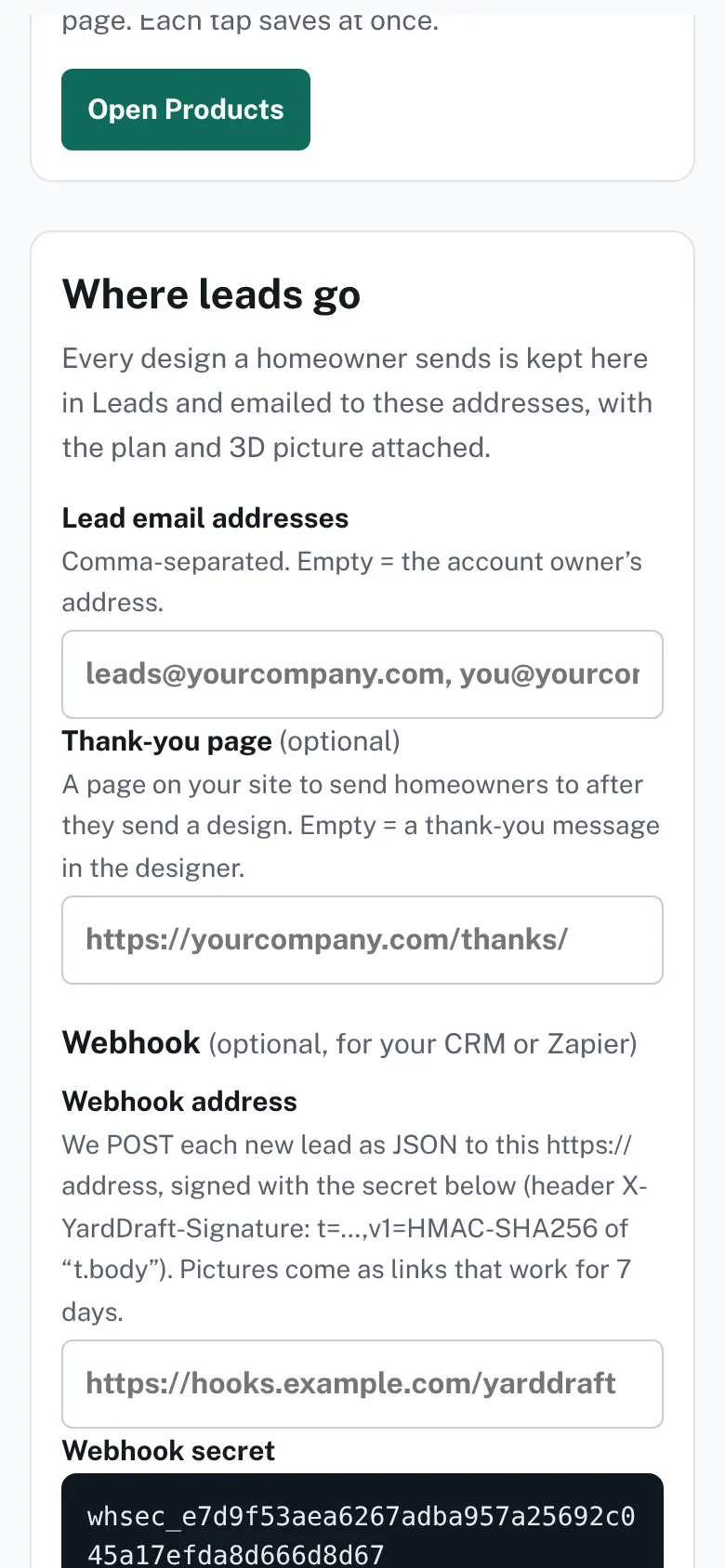
Settings, section Where leads go, with the Lead email addresses box. - Fix any typo, separate addresses with commas, then tap Save settings.
- Look in the spam folder. The product itself says: “Check your inbox (and spam).”
- On Leads, tap Send myself a test lead if the First steps card shows it. The page says Test lead sent. Check your inbox too.

Good to know
- Only the account owner can change the lead email addresses. Team members can see them.
- Until the email is confirmed, the lead address box is switched off and says Confirm your email address first.
- If a message cannot be sent right away, the product keeps it and tries again later.
- Each lead page lists Emailed and Webhook. A webhook is separate from email.
Checked against the product on 2026-11-19.