Check and change a draft before sending
Read every line of the draft, fix prices and quantities, then save it, approve it and send it to the homeowner.
Check the draft line by line before the homeowner sees anything. The Estimate editor is on the lead page.
Steps
- Open the lead and press Edit the estimate.
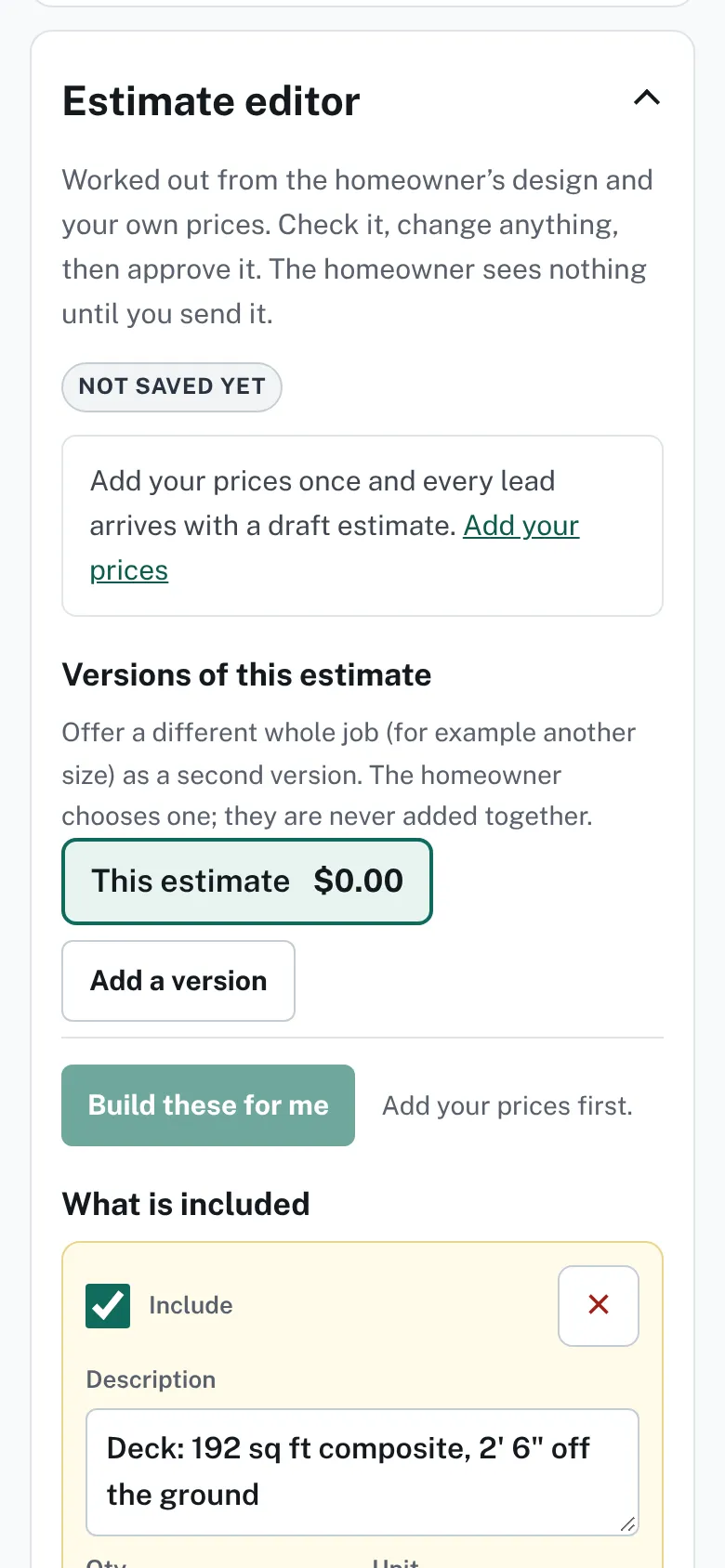
The Estimate editor on a lead page with a status badge, a Versions area, a Build these for me button and the first estimate lines. - Read each line. A line has Description, Qty, Unit, Your cost each, Markup %, Price each and Line total.
- Fix any line. Untick Include to leave a line out, or press × to remove it.
- For a line that says "No price set", type a Price each, or open your price list from its link.
- Press Add a line if something is missing.
- Check Tax name, Tax %, Valid until and the terms.
- Press Save draft. The message "Draft saved" appears and the card at the top refreshes.
- Press Approve and send on the card. Confirm with Send it.

Good to know
- Until you save, the top card still shows its old warnings and may keep Approve and send off. Press Save draft after changing lines.
- You cannot approve while a line that is switched on has no price. Set the price or untick Include.
- If the homeowner gave no email, the card offers Approve only. You can print the estimate instead.
- Work it out again from my prices builds the lines again from the design. Put my edits back undoes it.
- Your cost and profit under the lines is shown only to you and your team.
- Once sent, a version is locked. Press Revise and resend to change it.
- More: Versions, choices and extras.
Checked against the product on 2026-11-19.