The plan and 3D view in the fence designer
What the Plan and See it in 3D views show a homeowner, how they spin and zoom, and what the 3D view leaves out.
The drawing has two views. Plan is a flat view from above, where the homeowner draws. See it in 3D shows the same fence standing in a yard.
Steps
- On the plan, look for the brown fence line, the green length labels and the orange gate labels. A gate shows its hinge dot and swing arc.
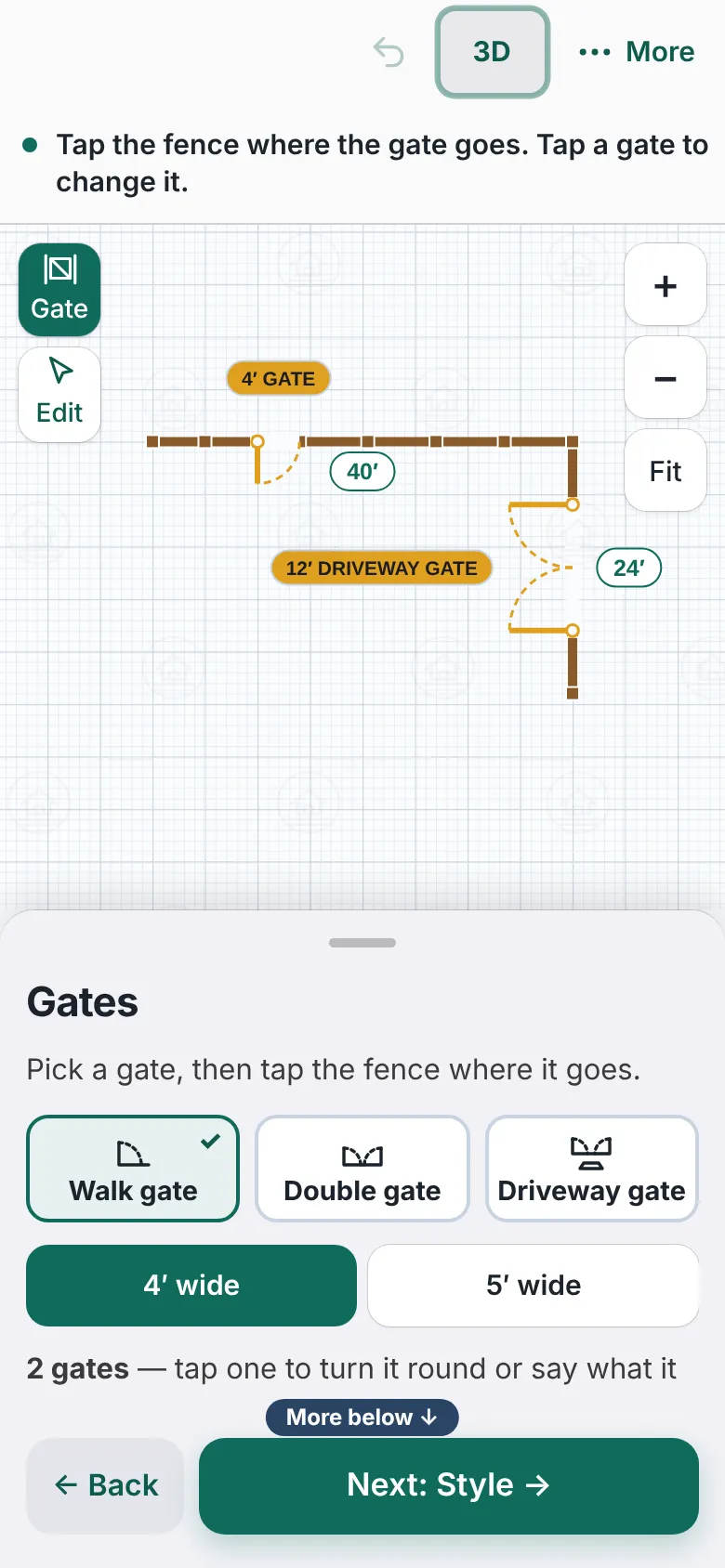
The plan view: an L-shaped fence on graph paper with a walk gate and a driveway gate, each with a label and swing arc. - Tap See it in 3D (3D on a phone). Drag to spin around the fence.
- Use + and − to zoom and Reset to go back to the first view. On a computer, the ⟲ and ⟳ buttons turn the view.
- On the Style step, pick another style or Color and watch the fence change.
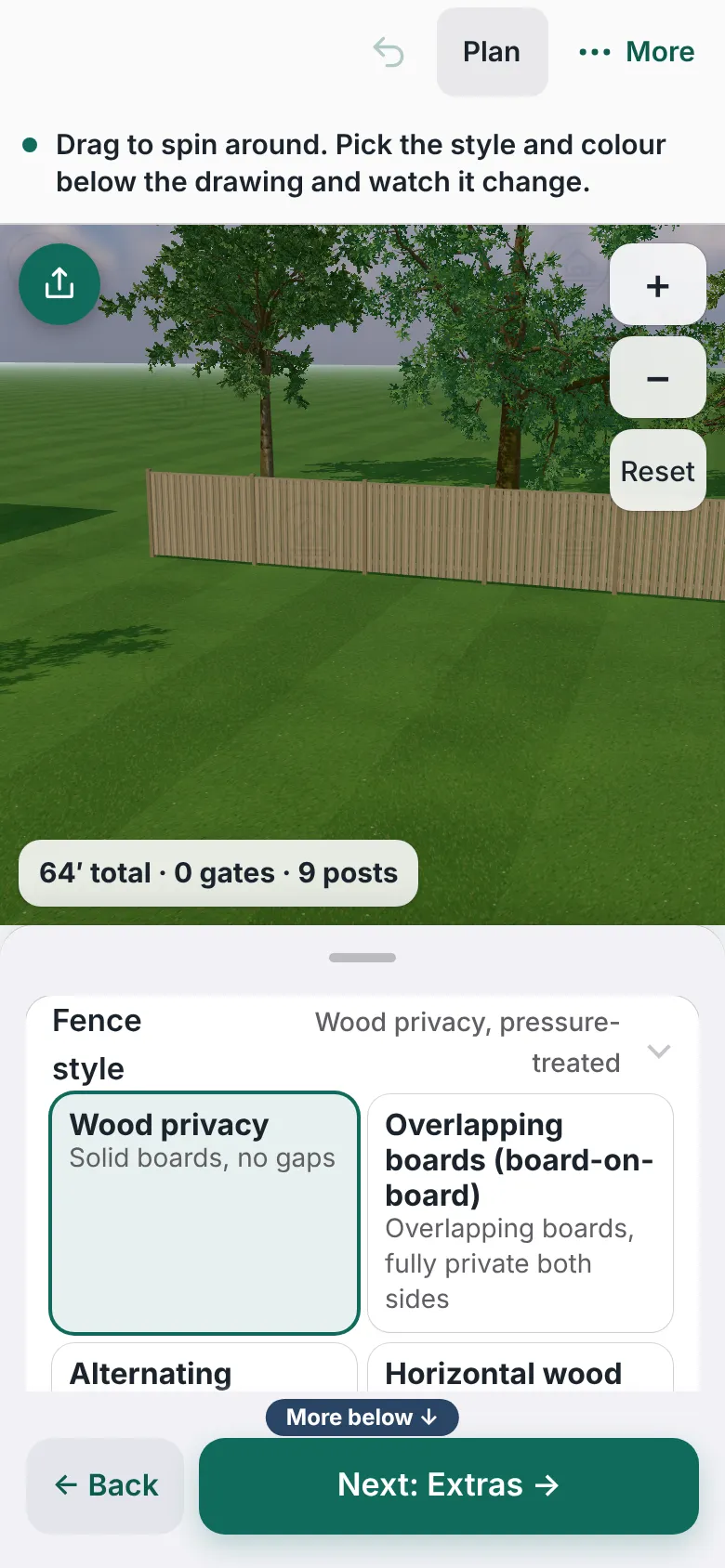
The 3D view of a wood privacy fence on a lawn, with zoom buttons and the style list beside it. - Tap Plan to go back to drawing.


Good to know
- The 3D scene adds scenery such as a lawn and trees. It is a picture of the fence, not of the real yard.
- A side with its own height or style is drawn that way in 3D.
- The 3D view does not show a sloped side. The lead text says so.
- The 3D picture is taken when a design is sent, even if the homeowner never opened 3D. It arrives with the plan picture.
- Share my fence may show on the 3D view. Whether it shows depends on Customer sharing in Settings.
- Save this view is not on every designer. Where it shows, it saves one picture of the 3D view.
- Back to drawing the fence line.
Checked against the product on 2026-11-19.