Read your Leads list and open a lead
Find a homeowner's design in your Leads list, open it, mark where it stands and keep notes.
Every design a homeowner sends through your designers lands on the Leads page, newest first. Open a lead to see it, mark where it stands and keep notes for your team.
Steps
- Select Leads in the top menu.
- Read a row. The first line has the name, town, street and phone. The second says Deck or Fence, the size, the boards, when they want to start and what they asked for next.
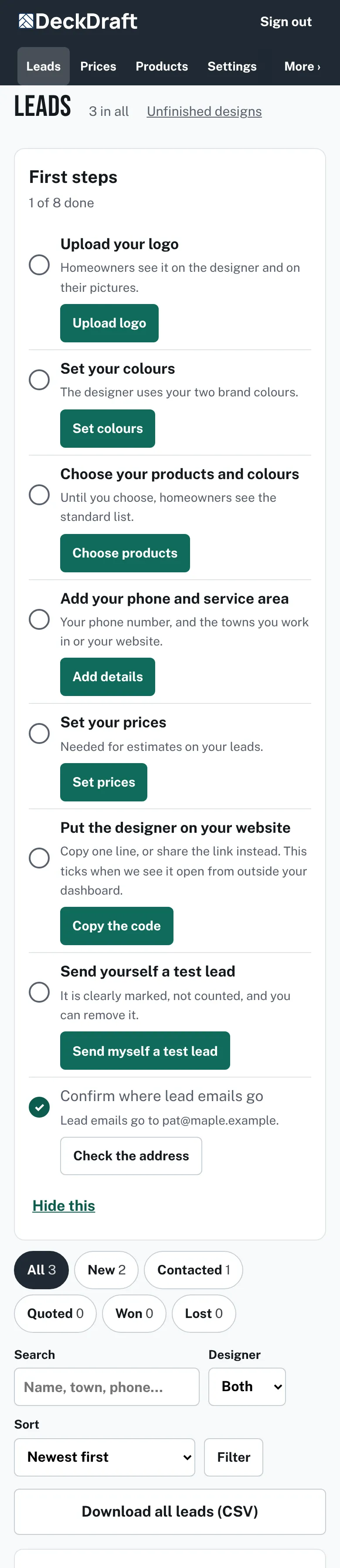
The Leads page with status tabs, a search and filter row, a button to download all leads, and a list of leads with name, town, phone and status tags. - Use the tabs All, New, Contacted, Quoted, Won and Lost to see one status. Each tab shows a count.
- To find someone, type in Search (name, town or phone), pick a Designer, then press Filter.
- Select a name to open the lead. Press Call, Text or Email to reach the homeowner.
- Press Mark contacted, Mark won or Mark lost near the top. For quoted, open Status, notes and history and press quoted.
- Press Add a note, type what happened, then press Save note.
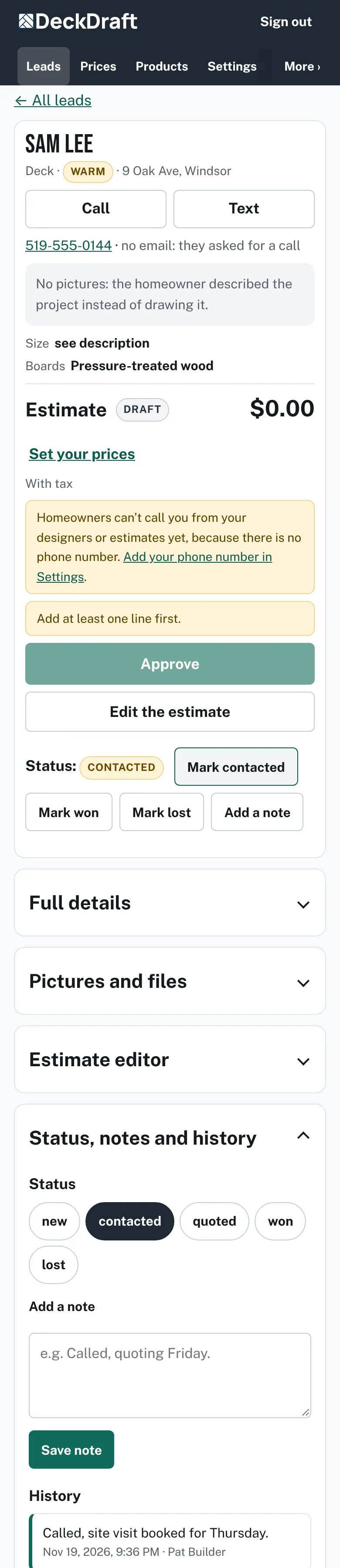
One lead page with its status buttons, the Add a note box and the history list of changes and notes.


Good to know
- Every lead starts as new. Each change and note goes into the History list with your name and the time.
- The small tag next to the status says HOT, WARM or COLD. It comes from when the homeowner said they want to start: hot for soon, cold for Just researching.
- A homeowner may leave the email blank. The lead then says "no email: they asked for a call", and there is no Email button.
- A lead the homeowner described instead of drawing says "No pictures: the homeowner described the project instead of drawing it."
- Send myself a test lead in the First steps box makes a lead marked Test. It is not counted. See What comes with a lead.
- The Unfinished designs link at the top is for designs homeowners saved to finish later: Saved designs.
Checked against the product on 2026-11-19.