Sign up and confirm your email
Create your builder account, land in Settings, and confirm your email so lead emails can reach you.
Creating an account takes one form. You confirm your email afterwards so lead emails can reach you.
Steps
- Open the sign-up page.
- Type your Company name. Homeowners see it in the designer.
- Type Your name and your Email.
- Type a Password of at least 10 characters.
- Optional: type Your website. It is registered as a domain that may show your designers.
- Press Create my account.
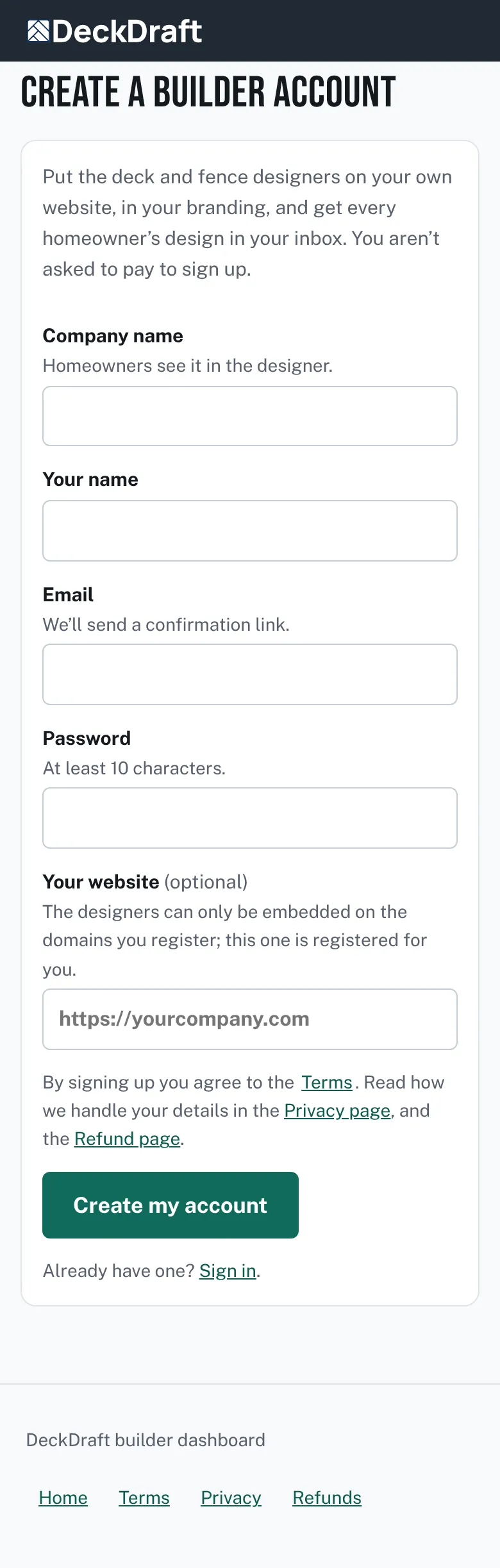
The Create a builder account form with company name, your name, email, password and optional website boxes. - You land on Settings with a welcome message that points you to the Embed page.
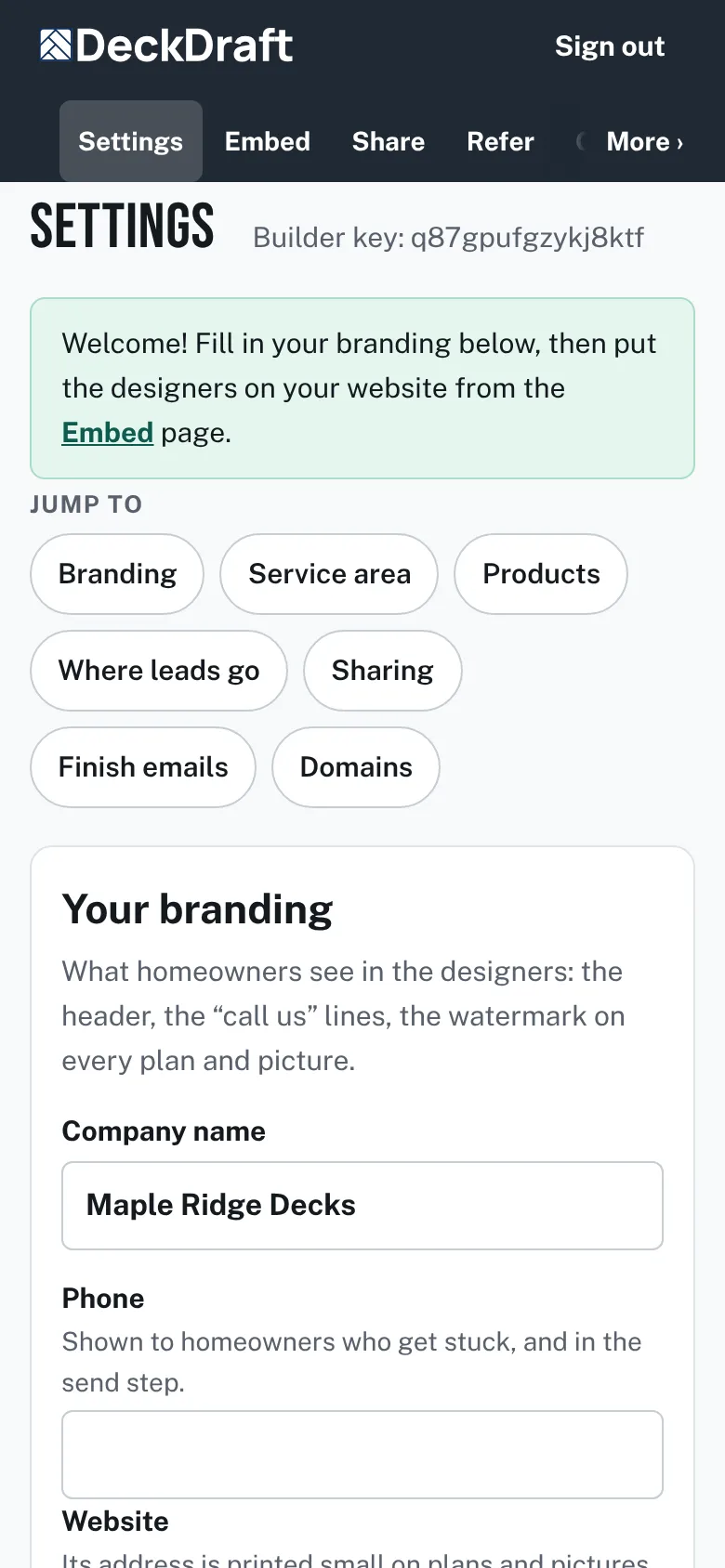
The Settings page opened right after sign-up, with the green welcome message at the top. - Open the email titled "Confirm your email for DeckDraft" and click its link.
- The page says "Thanks, your email is confirmed. Lead emails will come to it."


Good to know
- Until you confirm, a banner says "Confirm your email address to get new leads by email." Leads still arrive in the dashboard.
- Press Send the link again in that banner if the email did not come. Check your spam folder too.
- The lead email addresses and the webhook in Settings stay locked until your email is confirmed.
- The form says you are not asked to pay to sign up. For plan details see the Pricing section of the home page, the Terms and the Refunds page.
- Next: Your first ten minutes.
Checked against the product on 2026-11-19.