A tour of the dashboard
Every item in the top menu, and what you will find on each page.
The menu runs along the top of every page. On a phone it scrolls sideways, and a More button shows when items are hidden.
Steps
- Sign in at the sign-in page. You arrive on Leads.
- Open each menu item below, from left to right.
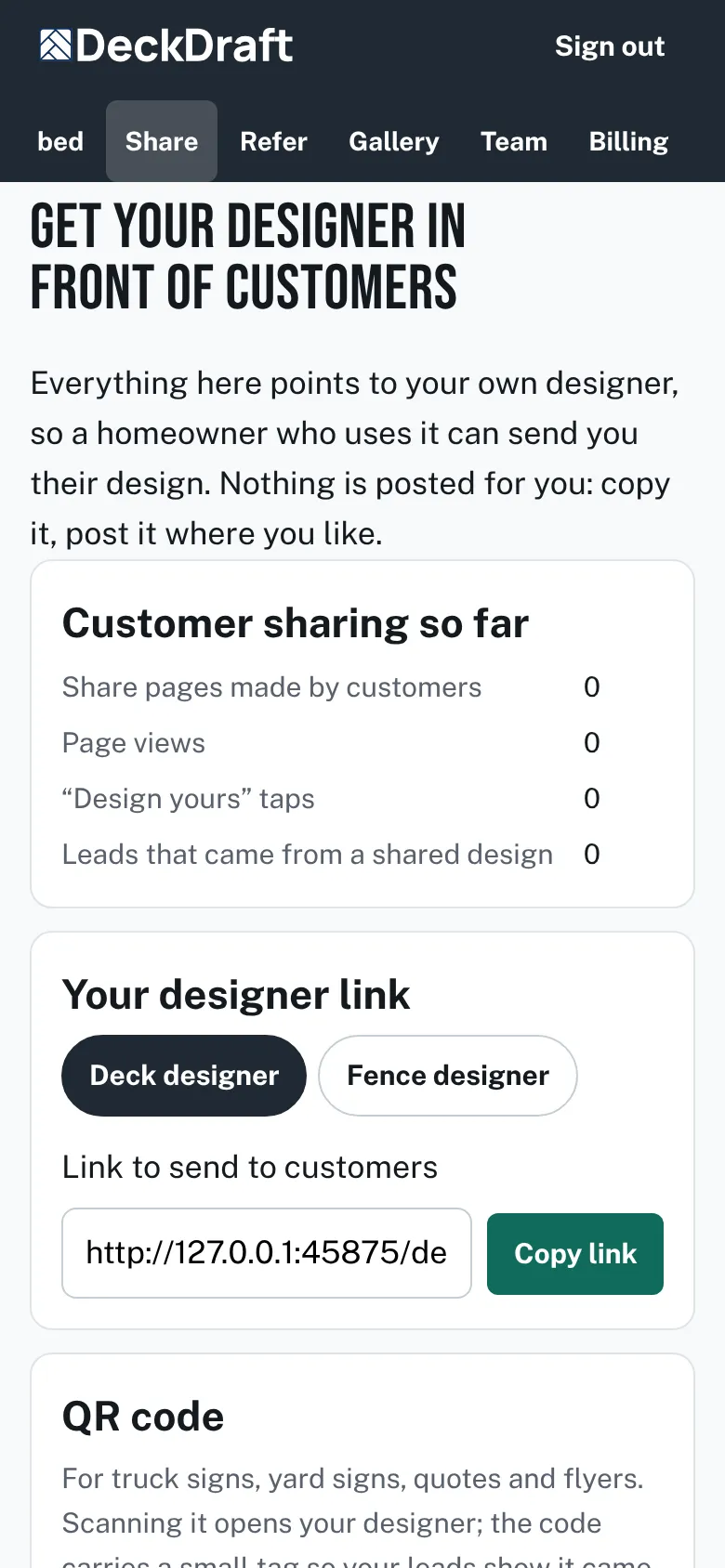
The Share page with the top menu showing Leads, Prices, Products, Settings, Embed, Share, Refer, Gallery, Team and Billing.

The menu
- Leads: every design homeowners sent you, with status tabs, search, a Designer filter and Download all leads (CSV). First steps sits on top until it is done. Unfinished designs is linked beside the title.
- Prices: your own rates for draft estimates. See Type your prices.
- Products: switches for what homeowners can pick. See Choose deck boards and colors.
- Settings: branding, service area, where leads go, sharing, finish emails and website domains.
- Embed: the line of code for your website. See Put the designer on your website.
- Share: your designer link, a QR code, ready-made posts and share pictures.
- Refer: a link to send to other builders, with a ready message.
- Gallery: opens the public gallery of ready-made decks and fences.
- Team: the people on your account, and a form to invite someone by email.
- Billing: your plan and its status.
Good to know
- Locations appears in the menu only on some accounts. Admin is only for the DeckDraft owner.
- Your name and company show at the right, with Sign out.
Checked against the product on 2026-11-19.