Your first ten minutes
A checklist of what to do first, in the order the First steps card lists it, with a link to the help page for each job.
The Leads page opens with a First steps card. It lists the first jobs to do and ticks each one by itself when it finds the job done.
Steps
- Open Leads and find the First steps card.
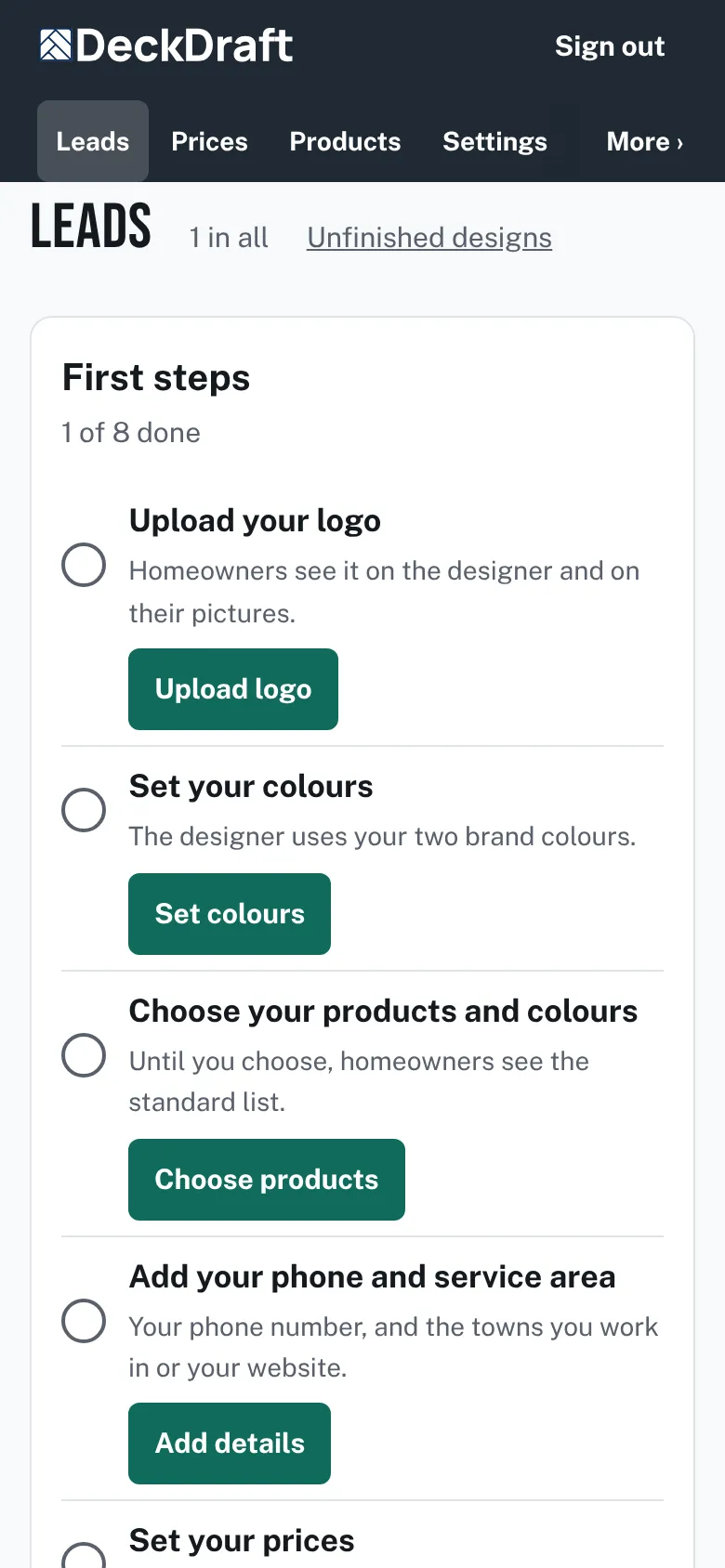
The First steps card on the Leads page, with eight jobs and a button beside each one. - Upload your logo. See Your name, phone, email and logo.
- Set your colors. See Your brand colors. It ticks once you change a color.
- Choose your products and colors. See Choose deck boards and colors, Choose railing and deck options and Choose fence styles and heights.
- Add your phone and service area. Your phone is in Your name, phone, email and logo. Your towns are in Service area, thank-you page and lead emails.
- Set your prices. See Type your prices.
- Put the designer on your website. See Put the designer on your website.
- Send yourself a test lead. Press Send myself a test lead. Then press Open the test lead. The job ticks once you open it.
- Confirm where lead emails go. Check the address on the same page as step 5.

Good to know
- Each tick comes from what the product finds, not from a tap. The website job ticks when the designer is seen open from outside your dashboard.
- Set your prices is on the card only when your plan includes draft estimates.
- A test lead is clearly marked and not counted. A copy also goes to your inbox. Remove it with Remove this test lead on its page.
- Hide this at the bottom of the card hides it. The card also goes away once every job is done.
- For a tour of every menu item, see A tour of the dashboard.
Checked against the product on 2026-11-19.