Benches along a side
Add a built-in bench along one side of the deck, then make it longer, shorter, deeper or shallower, with or without a back.
A bench sits on the deck along one side. It is added from the side panel on the Your deck step, and it shows on the drawing and in 3D.
Steps
- On Your deck, press the side of the drawing where the bench goes.
- In the panel, press Add a bench along this side.
- Read the line that starts with Bench. It gives the length, the depth and the seat height.
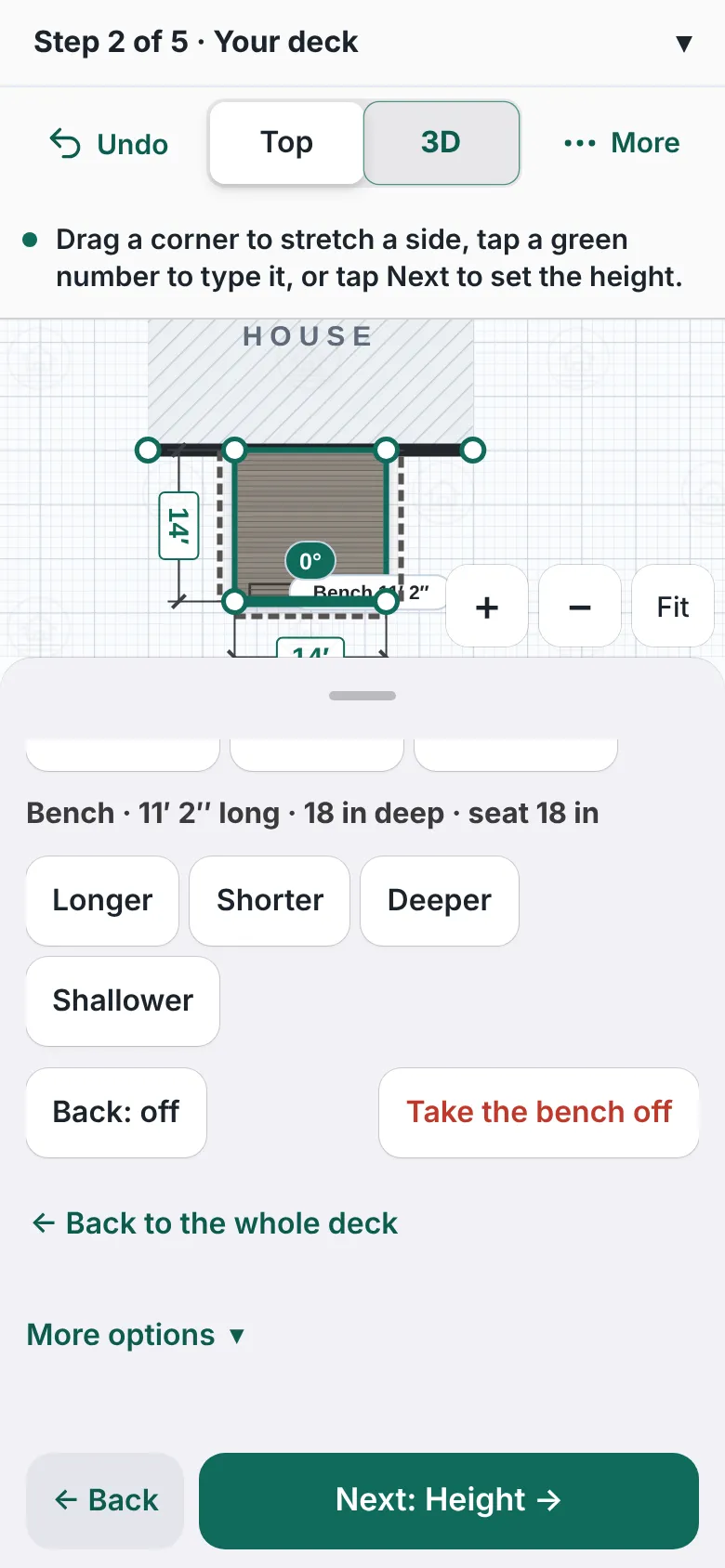
A deck with a bench drawn along its front side. The panel reads Bench with its length, depth and seat height, and shows Longer, Shorter, Deeper, Shallower, Back off and Take the bench off. - Press Longer or Shorter to change the length.
- Press Deeper or Shallower to change how far the bench reaches into the deck.
- Press Back: off to add a backrest. The button then reads Back: on.
- Press Take the bench off to remove it.

Good to know
- The panel says that the bench takes the railing off the stretch it sits on.
- A bench cannot sit on stairs, a privacy screen or the access door on the same stretch. The designer says so and undoes the change.
- A message appears when a bench cannot be made any shorter.
- A design can only have a set number of benches. A message appears when you reach it.
- The bench stays inside a picture-frame border if you chose one on Boards and deck look.
- A bench can follow a curved side: Curved edges.
- Back: Your deck.
Checked against the product on 2026-11-19.