Freestanding decks
The Stands on its own posts option in the designer, what it means, and how it differs from the wording on your Products page.
A freestanding deck stands on its own posts instead of being fastened to the house. A homeowner can choose this on any deck that touches the house.
Steps
- On Boards & railing, press Skirting, privacy screen and extras.
- Open Framing & footings.
- Find Where the deck meets the house.
- Press Fastened to the house or Stands on its own posts (not fastened to the house).
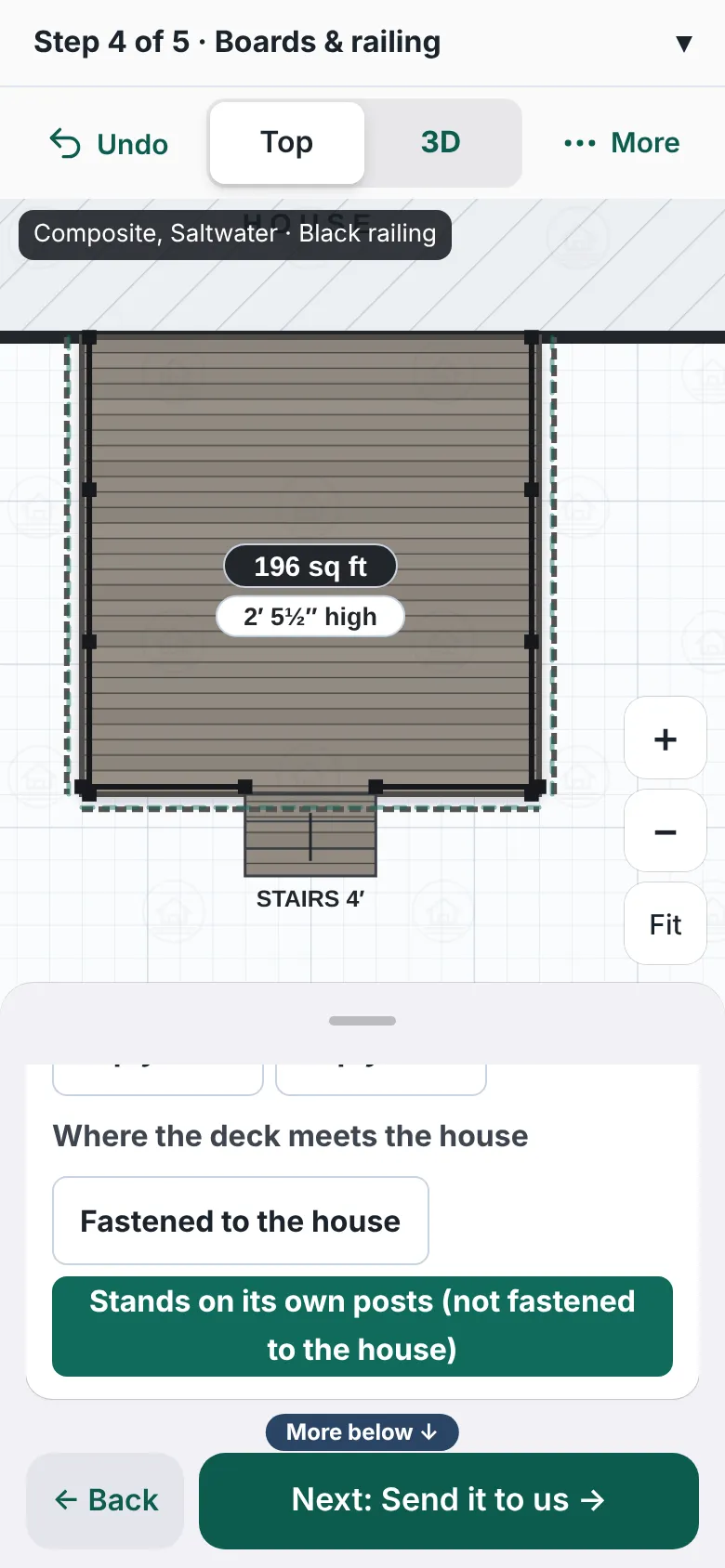
The Framing and footings box scrolled to Where the deck meets the house. Two buttons read Fastened to the house and Stands on its own posts (not fastened to the house); the second one is selected. - With more than one deck touching the house, each deck has its own row, such as Deck A.
- Press Next: Send it to us.

Good to know
- Homeowners see plain words. They never see "ledger". The row only shows on a deck that touches the house.
- On your Products page the same choice is worded for you: Attached to the house (ledger) or Freestanding (no ledger). It sets how a new design starts. See Choose railing and deck options.
- A choice a homeowner makes wins for that deck. A saved design keeps its own choice.
- A freestanding deck is drawn with its own beam and posts near the house. Ledger parts are left out of the counts.
- The designer keeps posts away from the house wall by the distance you set under Keep footings this far from the house.
- The box says: "Anything you change is a request: we go over the framing with you before we build."
- If you do not see the row, the option is switched off for your designer, or the deck does not touch the house.
- Back: Boards and deck look.
Checked against the product on 2026-11-19.