Plan, 3D and the view controls
Switch between the plan and the 3D view, use the view buttons and the menus, and what a homeowner can and cannot save of the 3D picture.
Homeowners draw on a plan and can look at the same deck in 3D at any time. The two always show the same design.
Steps
- Press Top to draw on the plan. Press 3D to see the deck from outside.
- On a computer, also press Front or Right to see the deck from that side.
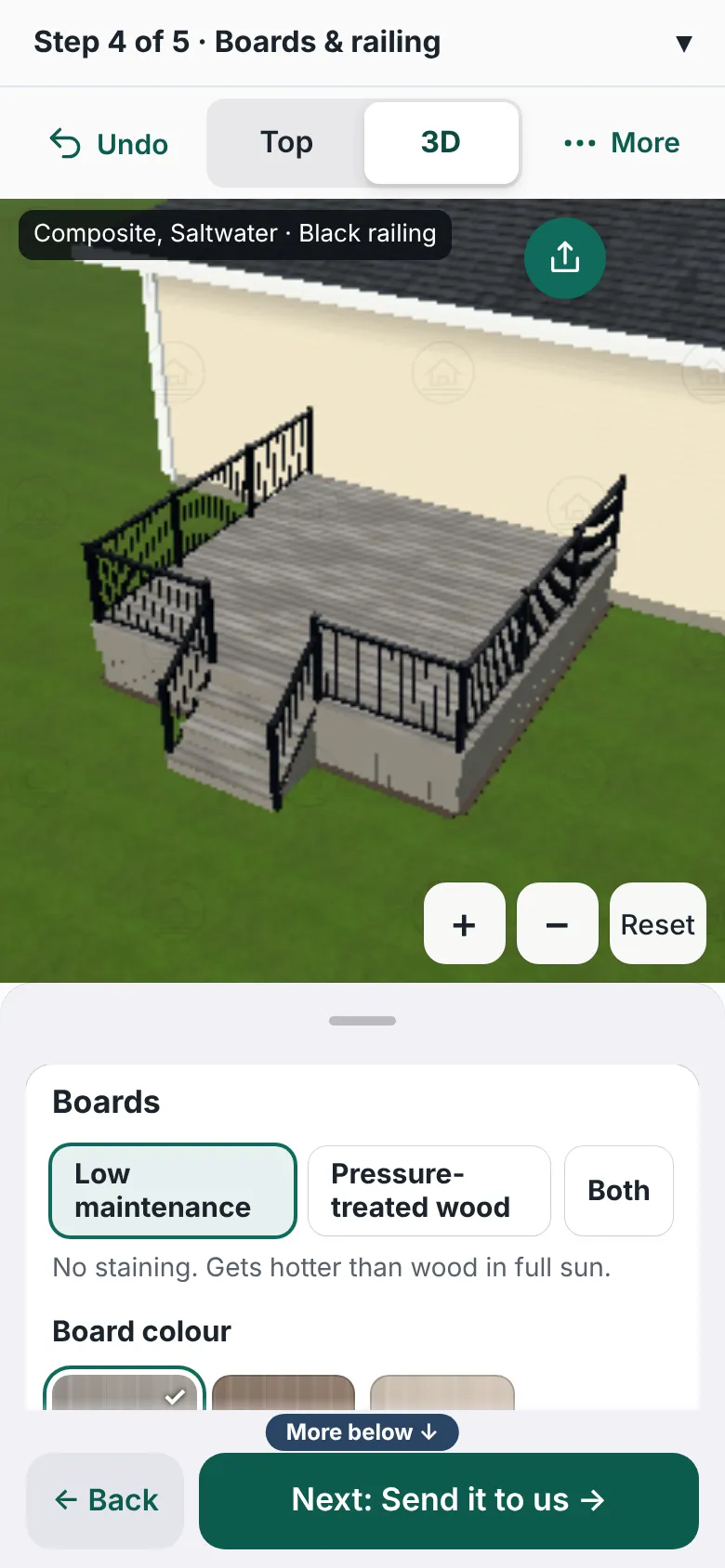
The designer on a wide screen with the plan on the left, the 3D view of the same deck in the middle and the Boards panel on the right. The view buttons Top, Front, Right and 3D are in the toolbar above. - On a computer, press One, Two or Four to show one view, two side by side, or Top, Front, Right and 3D together.
- In 3D, drag to turn the deck. Hold Ctrl and scroll to zoom. The tip on screen says this.
- Press the deck, railing, stairs, a screen or a door in 3D to change it. Press the house, roof or boards to change colors.
- On a computer, press Layers. It has ticks for Railing, Privacy screens and Measurements.
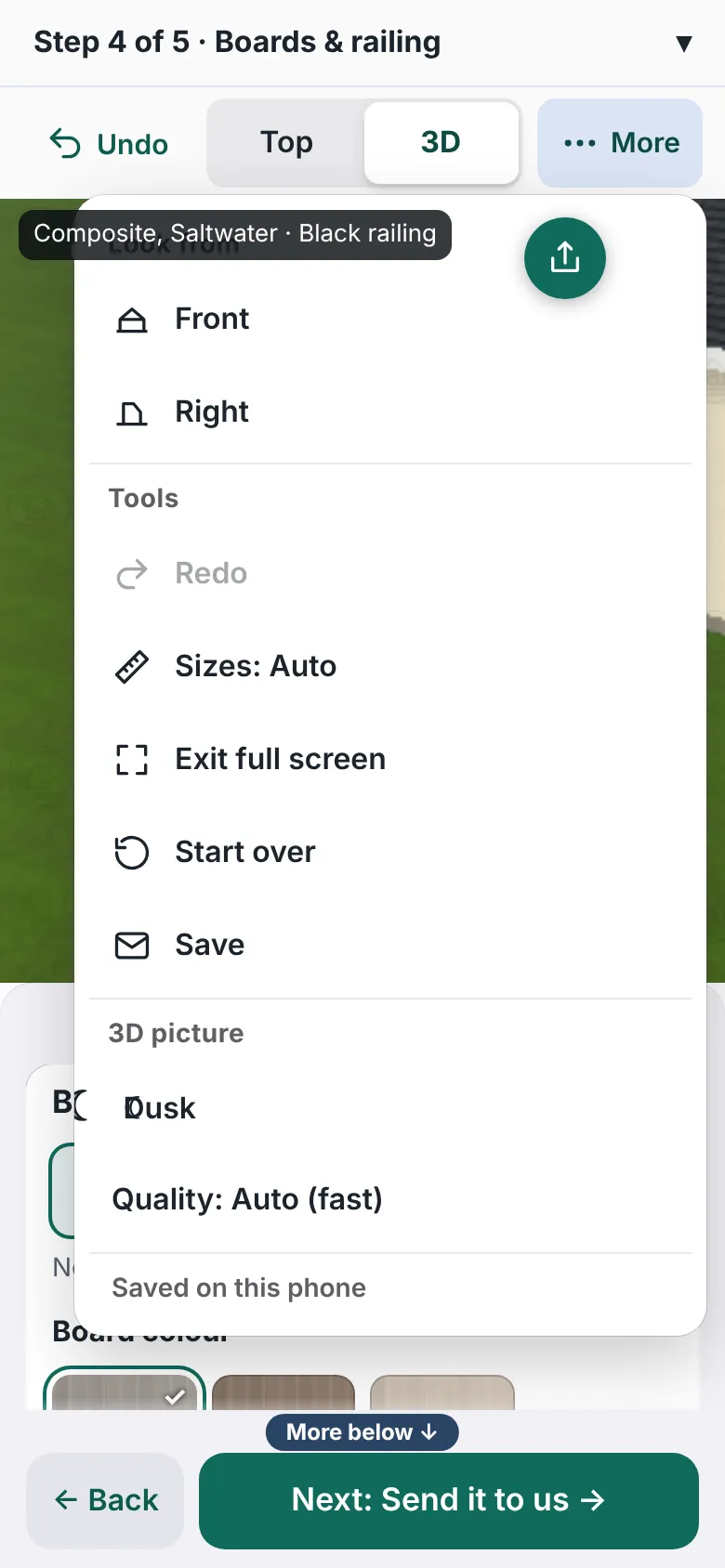
A menu open over the designer. On a wide screen it is the Layers menu with ticks for Railing, Privacy screens and Measurements. On a phone it is the More menu with Front, Right, Redo, Sizes, Start over and Save. - On a phone, press More for Front, Right, Redo, Sizes: Auto, Start over and Save.


Good to know
- Each press of Sizes cycles the measurements on the drawing: Auto, All, Off.
- On a phone, the 3D picture part of More has Dusk and Quality. The 3D view also has +, − and Reset.
- Full screen gives the designer the whole screen. A phone opens full screen when it starts.
- There is no button to download, export or print the design.
- A Save this view button would keep one picture of the 3D view, never the design. It is switched off on a standard designer, so you will not see it.
- Save sends the homeowner a link by email to finish later: Saved designs. Share my deck is covered in Customer share links.
- All steps: The deck designer, step by step.
Checked against the product on 2026-11-19.