Inlays in the deck boards
Set contrasting boards into the deck, such as a round medallion or an accent stripe, and change their size, angle and colors.
An inlay is a patch of contrasting boards set into the deck. It is in the optional section of the Boards & railing step.
Steps
- On Boards & railing, press Skirting, privacy screen and extras.
- Open Deck look and scroll to Inlay.
- For a simple shape, press Rectangle, Framed rectangle, Diamond, Circle (compass) or Center strip. None clears the simple shapes.
- For more, go to Add an inlay. Choose Nested bands, Herringbone panel, Chevron panel, Starburst, Round medallion, Framed panel, Accent stripe or Free shape.
- Set its size with Wider and Narrower, or Type the size.
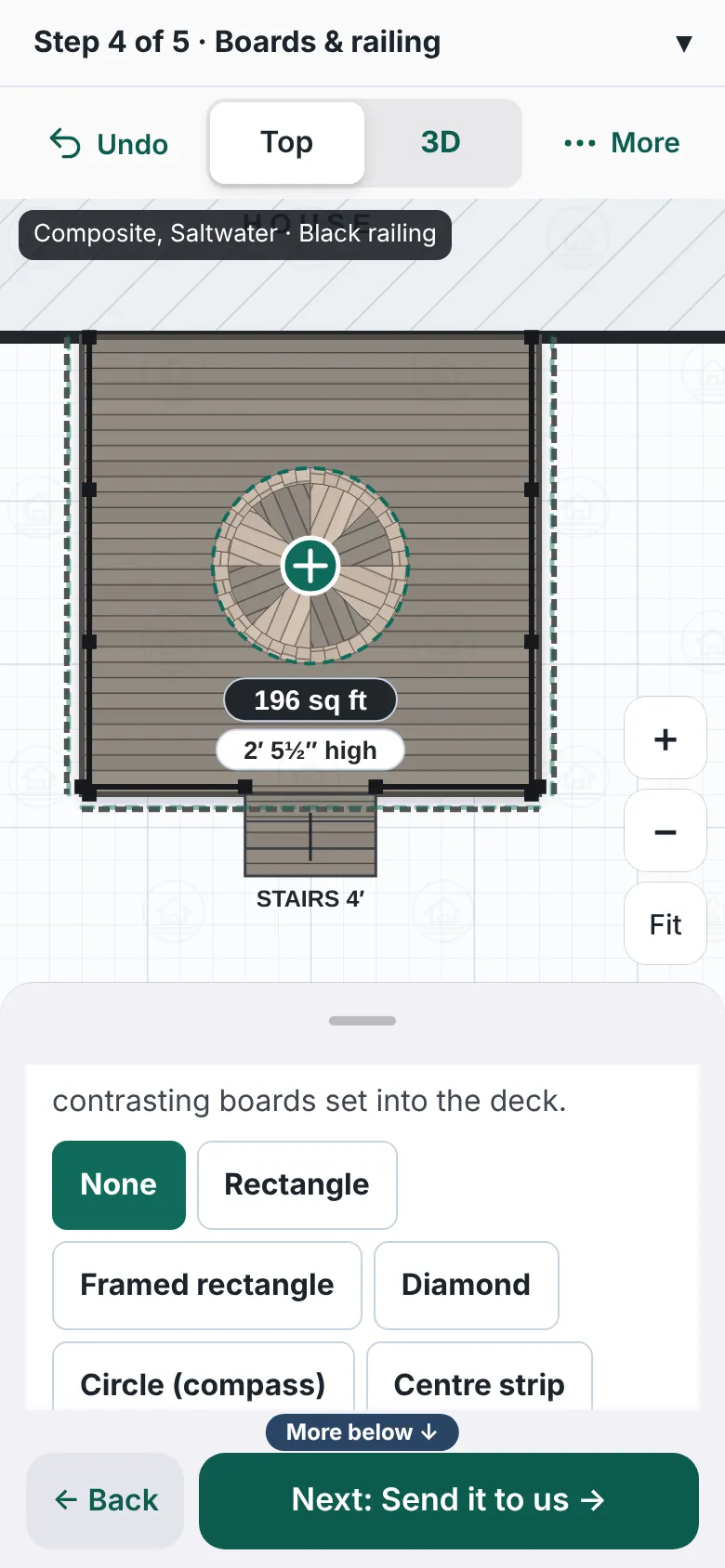
A deck with a round medallion inlay in the middle. The panel shows the Inlay choices, More inlays with the line Up to 4 inlays on a deck, and the settings for Inlay 1, a round medallion. - Move it with the arrow buttons, or drag the round handle on the drawing. Middle of the deck puts it back.
- Turn it with ↺ 15° and ↻ 15°, or press 45° or Straight.
- Pick Color 1, Color 2 and Color 3 from the board colors on offer.
- Press Remove this inlay to take one away.

Good to know
- The screen says: Up to 4 inlays on a deck. Boards stop at each one’s edge.
- Inlays that overlap are flagged: "Two inlays would overlap. Move one of them."
- Each type has its own settings. A medallion has Wedges and Ring boards. A stripe has One stripe or Two stripes.
- The colors come from the board colors you switched on: Choose deck boards and colors.
- Back: Boards and deck look.
Checked against the product on 2026-11-19.