Step 2: Your deck
Pick a ready-made deck or draw your own, then set its width and depth. Add a lower level if the deck needs one.
Here the homeowner chooses the shape and size of the deck. Rough is fine: the screen says close is fine, and you measure on site.
Steps
- Press Pick a ready-made deck to choose from a list. Or press Draw my deck to draw it.
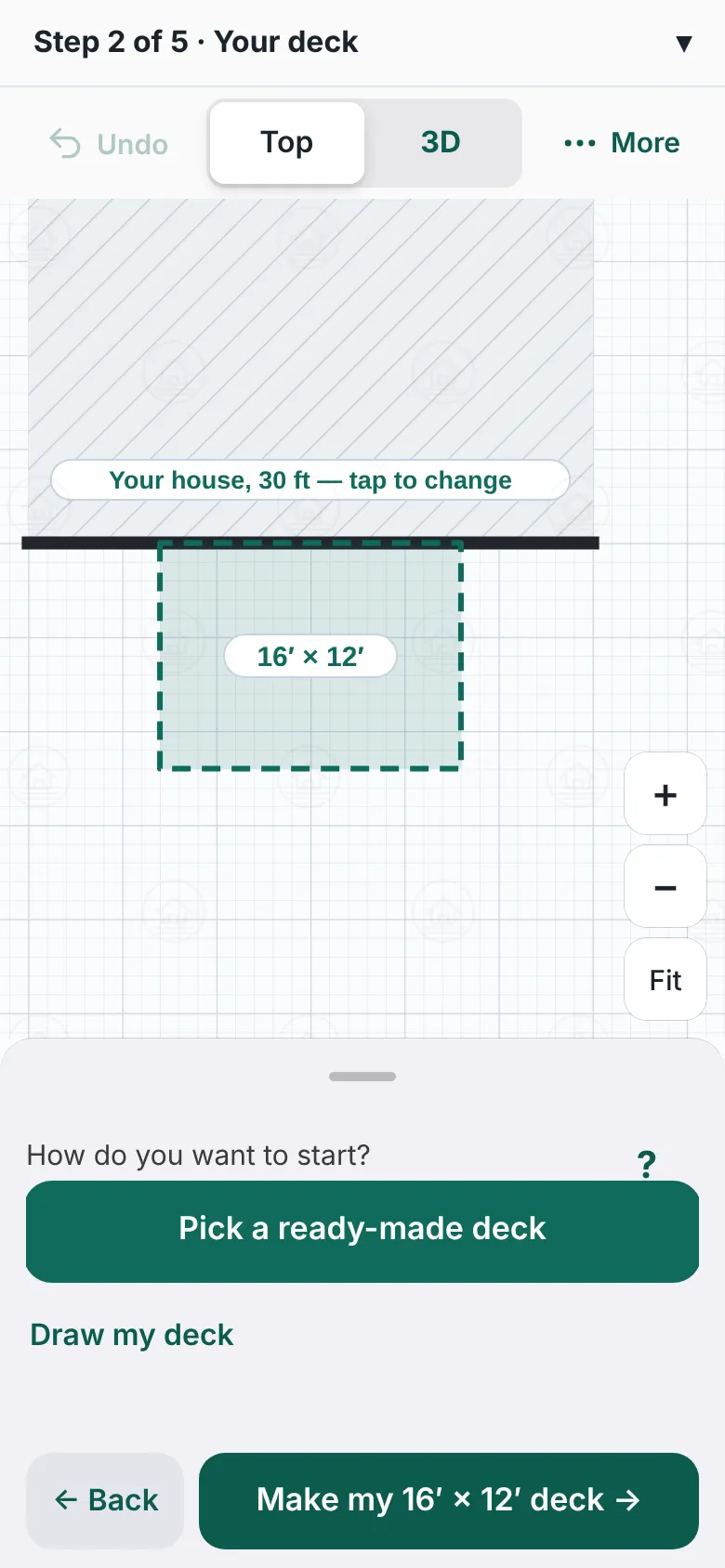
The Your deck step before a deck exists. The panel asks how to start, with a Pick a ready-made deck button and a Draw my deck button. A green outline on the drawing shows a 16 by 12 foot deck. - In the list, narrow it with All, Rectangle, L-shape, T & U, Angled, Two-level, Landing or Around a corner. You can also filter by size.
- Press a card, then Use this deck. Other size… lets you type your own.
- To draw, press the house wall where the deck starts, then each corner out and around. Press the wall again to close it.
- Change the size with − and + under Width and Depth. Or press a green measurement and type it.
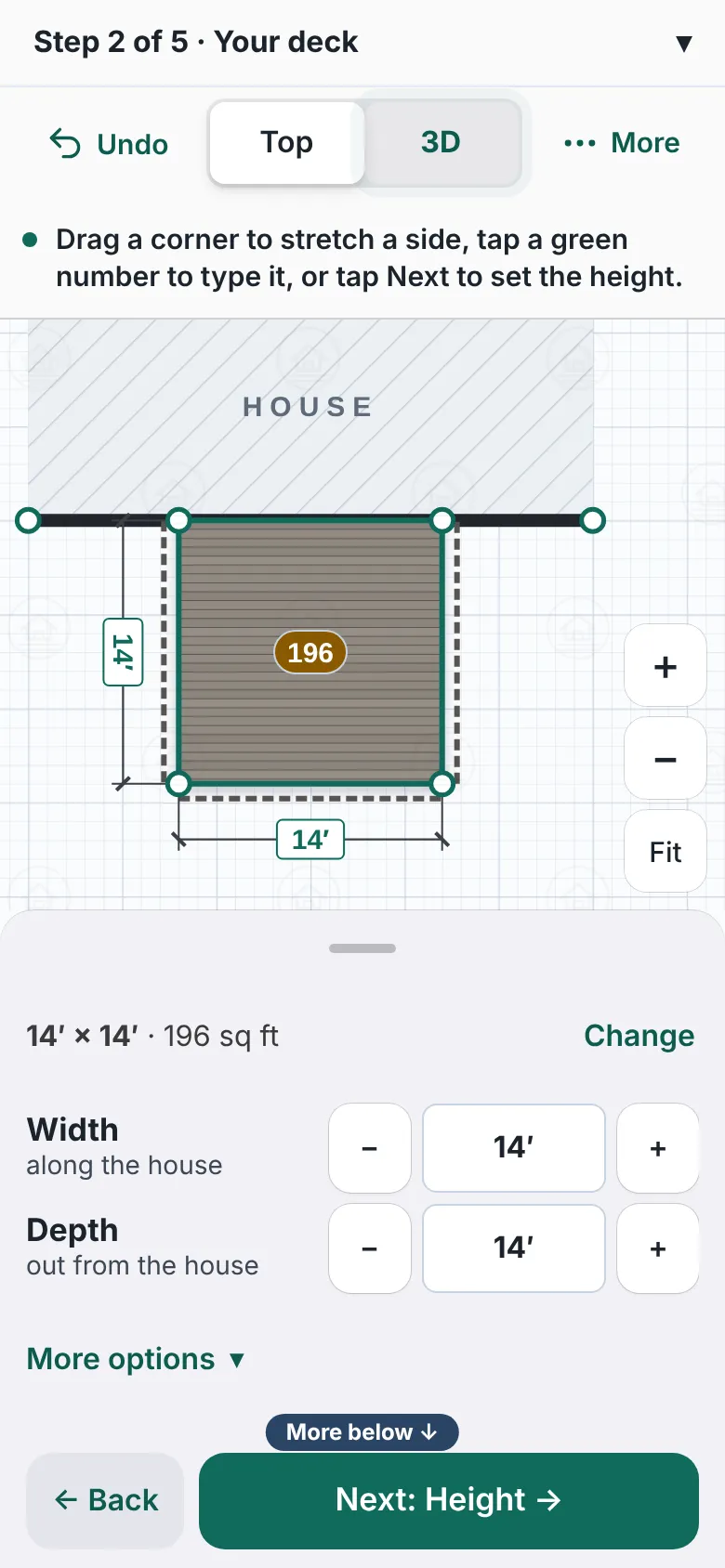
A 14 by 14 foot deck drawn against the house wall. The panel shows Width and Depth with minus and plus buttons and the sizes in feet. - Drag a corner to stretch a side, or drag the whole deck to move it. Move it with buttons moves it in small steps.
- Press Next: Height.


Good to know
- After a ready-made deck, the designer may ask Where’s your door? The answers are Centered, Somewhere else and No door here.
- Change the shape or size offers Rectangle, L-shape, Angled corners, Around a corner and Small landing.
- + Add a lower level adds a second deck at a different height.
- Delete this deck removes the deck. Undo brings it back.
- Press a side or a corner of the deck for more: Curved edges and Benches.
- Next step: Height.
Checked against the product on 2026-11-19.