Curved edges and rounded corners
Curve one side of the deck or round a corner on the Your deck step, and change the radius.
A side of the deck can bulge out or in, and a corner can be rounded. The drawing and the 3D view follow the curve.
Steps
- On Your deck, press one side of the drawing.
- In the panel, press Curve out, Curve in or Half round.
- Change the curve with Radius − and Radius +. Or press Type the radius and enter a number.
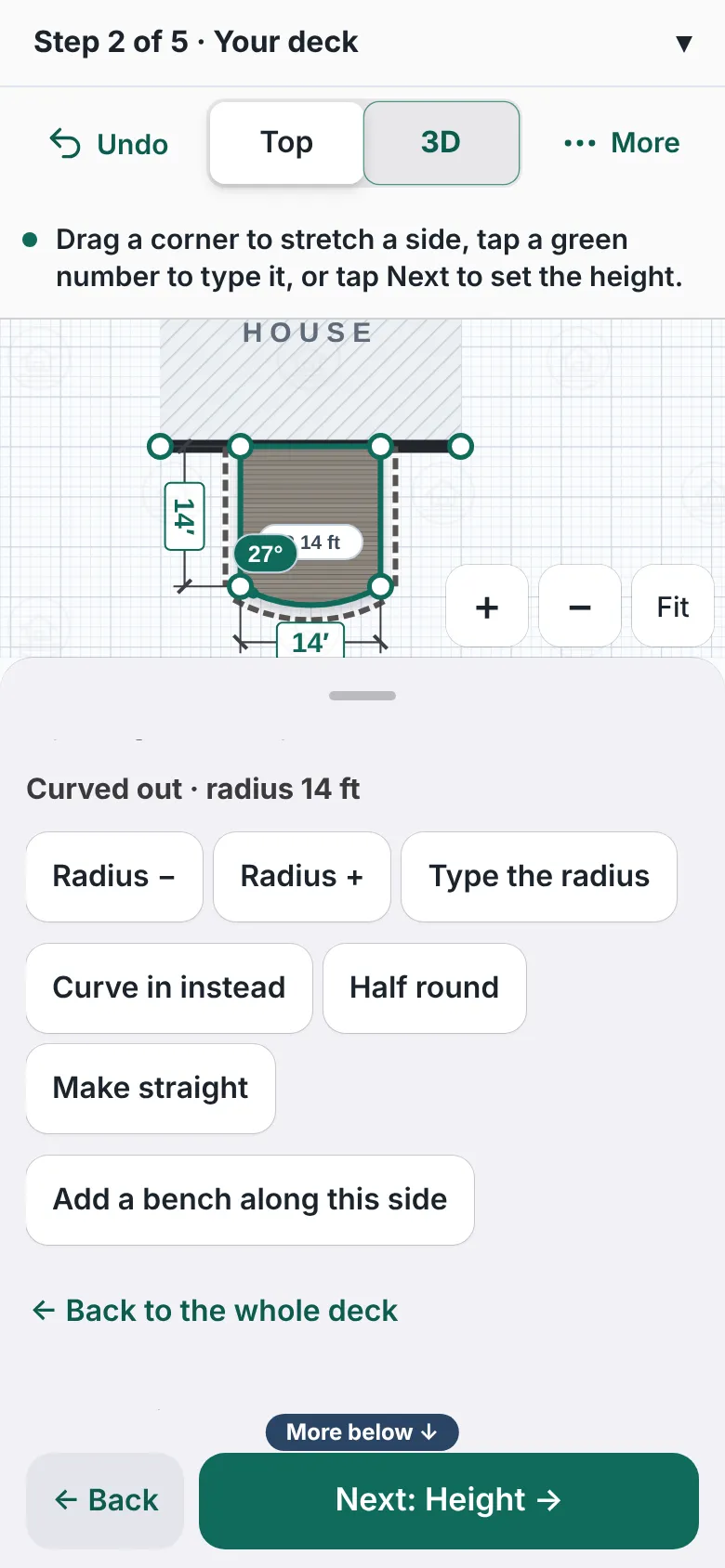
A deck with its front side curved outward. The panel reads Curved out, radius 14 ft, with buttons Radius minus, Radius plus, Type the radius, Curve in instead, Half round and Make straight. - To flip it, press Curve in instead or Curve out instead. Press Make straight to undo it.
- To round a corner, press the corner. Then press Round this corner.
- Change it with Radius − and Radius +. Press Square it again to go back.
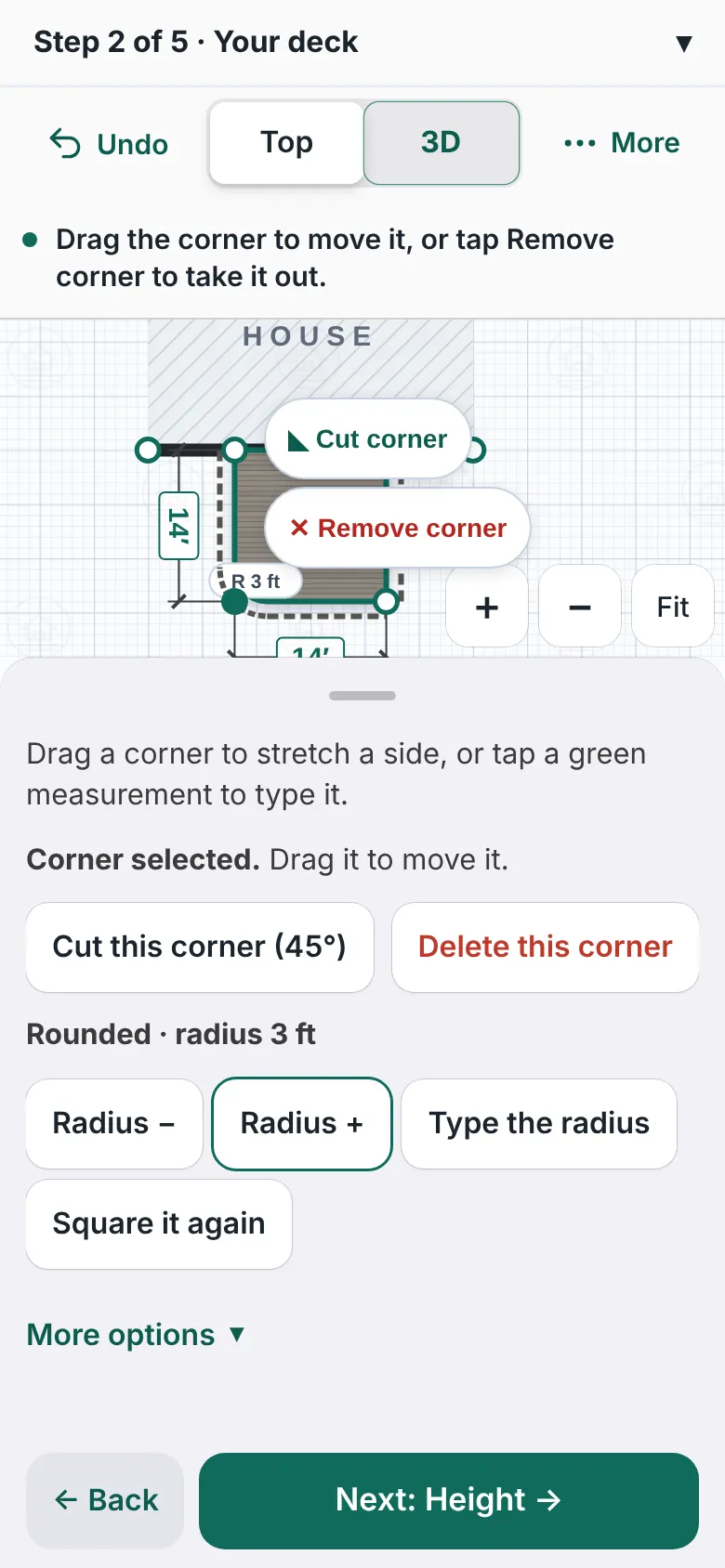
A deck with its front left corner rounded. The panel reads Rounded and offers Radius minus, Radius plus, Type the radius and Square it again.


Good to know
- The drawing writes the radius inside the curve, for example R 14 ft.
- If a change does not fit, the designer shows a message and changes nothing.
- A curve cannot run into the house wall.
- Stairs and privacy screens go on straight sides. The designer says to take them off a side first. The access door needs a straight side too.
- Half round makes the side a half circle. A radius cannot be smaller than half the side.
- A bench can follow a curved side: Benches.
- Back: Your deck.
Checked against the product on 2026-11-19.